Signing in
RefineAI Answers accounts are created for you by your organisation's administrator. Once you've received your credentials (or an onboarding email), sign in from your organisation's RefineAI Answers address.
Signing in
- Open the sign-in page (for example
https://answers.refineai.com.au/auth/login). - Enter your email address and password.
- Select Sign in.
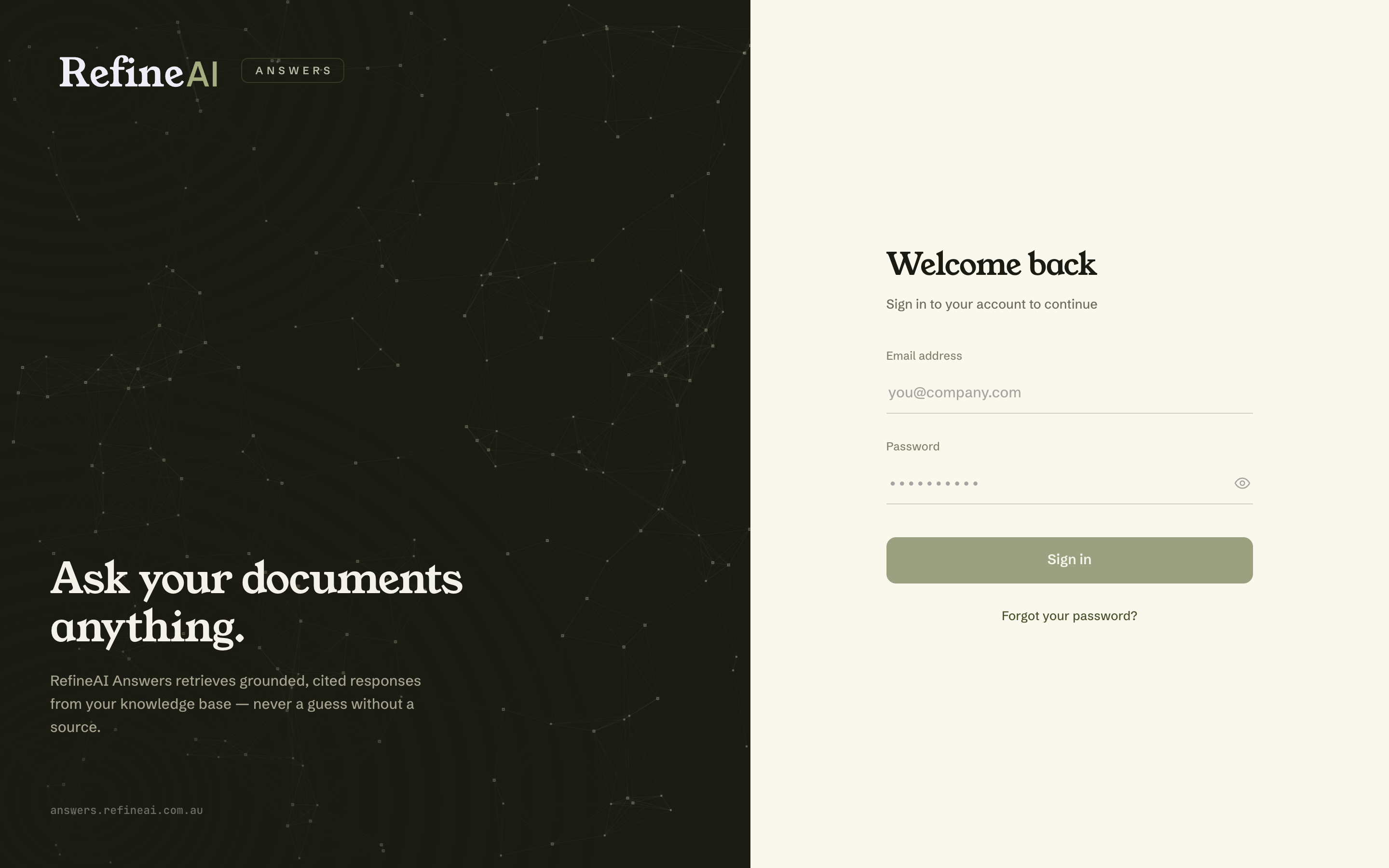
On success you land on your dashboard. If your administrator has required a password change, you'll be asked to set a new password before continuing.
Wrong password?
If your credentials don't match, you'll see an Invalid credentials banner. Check for typos and try again — the eye icon in the password field lets you see what you've typed.
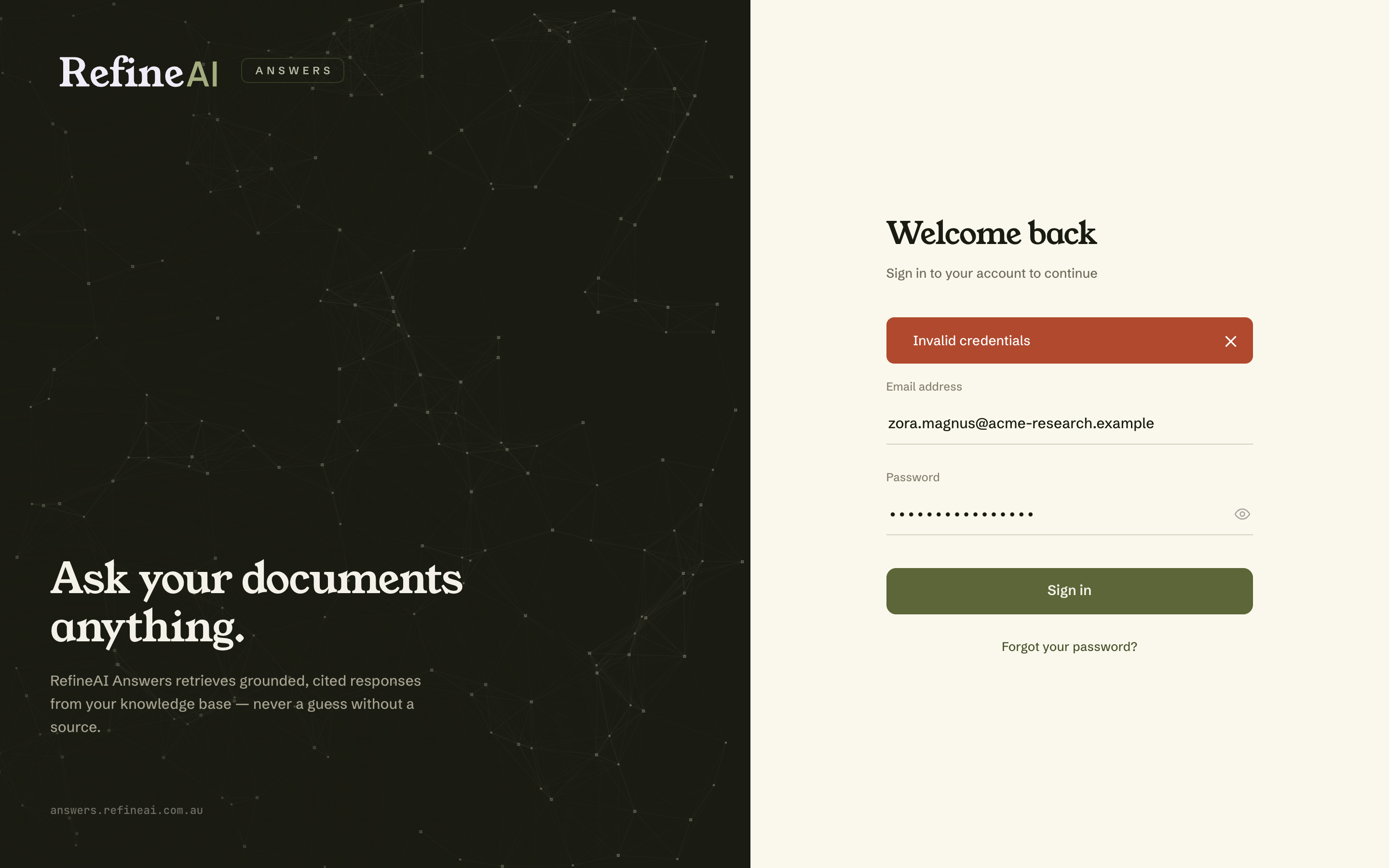
Account lockout: after 5 failed attempts your account is locked for 15 minutes as a security measure. Wait for the lockout to pass (or reset your password) and try again.
Forgot your password?
- On the sign-in page, select Forgot your password?
- Enter your email address and submit.
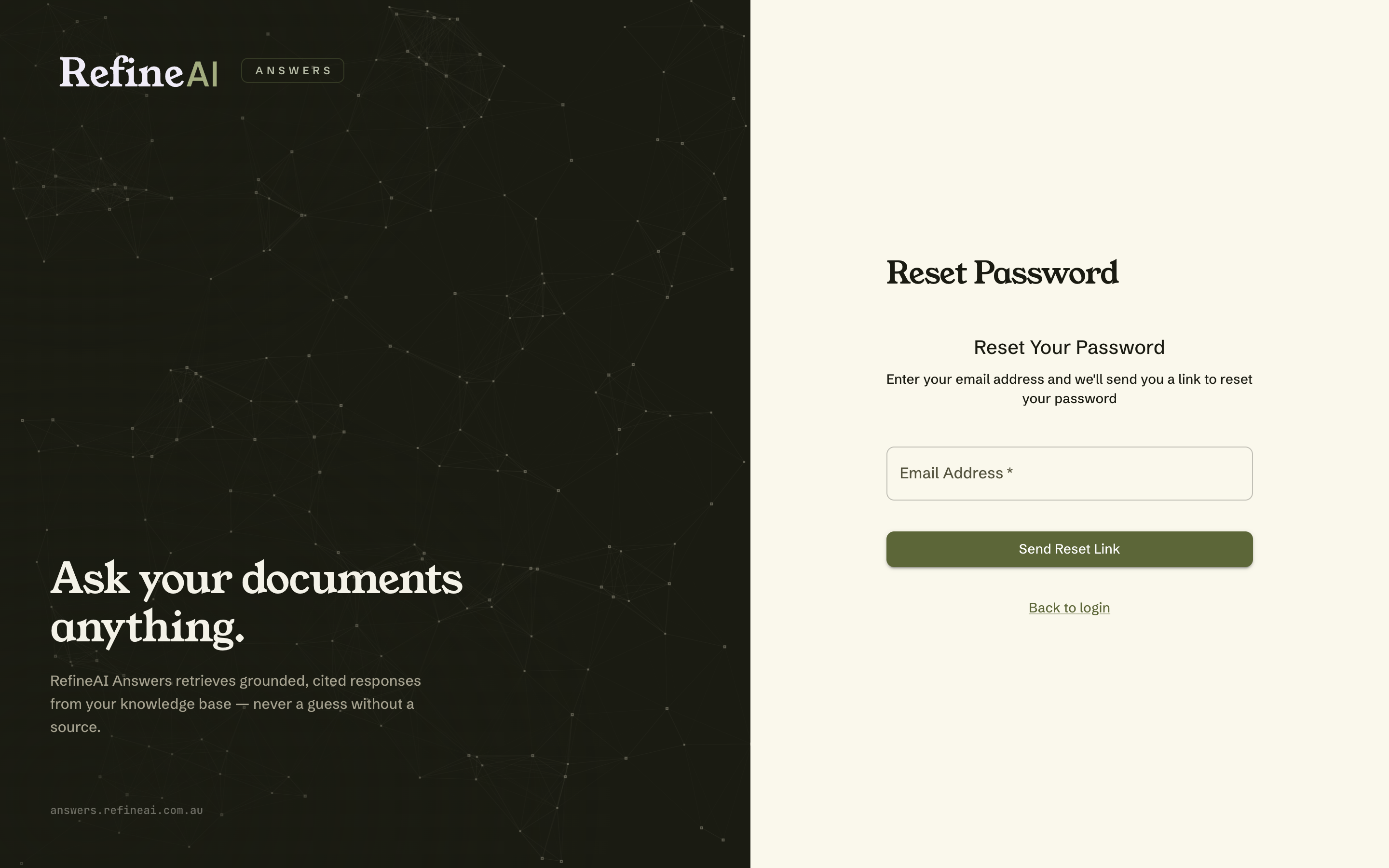
- You'll see a confirmation that an email is on the way. For security, the same confirmation appears whether or not the address has an account — so nobody can use this form to discover which emails are registered.
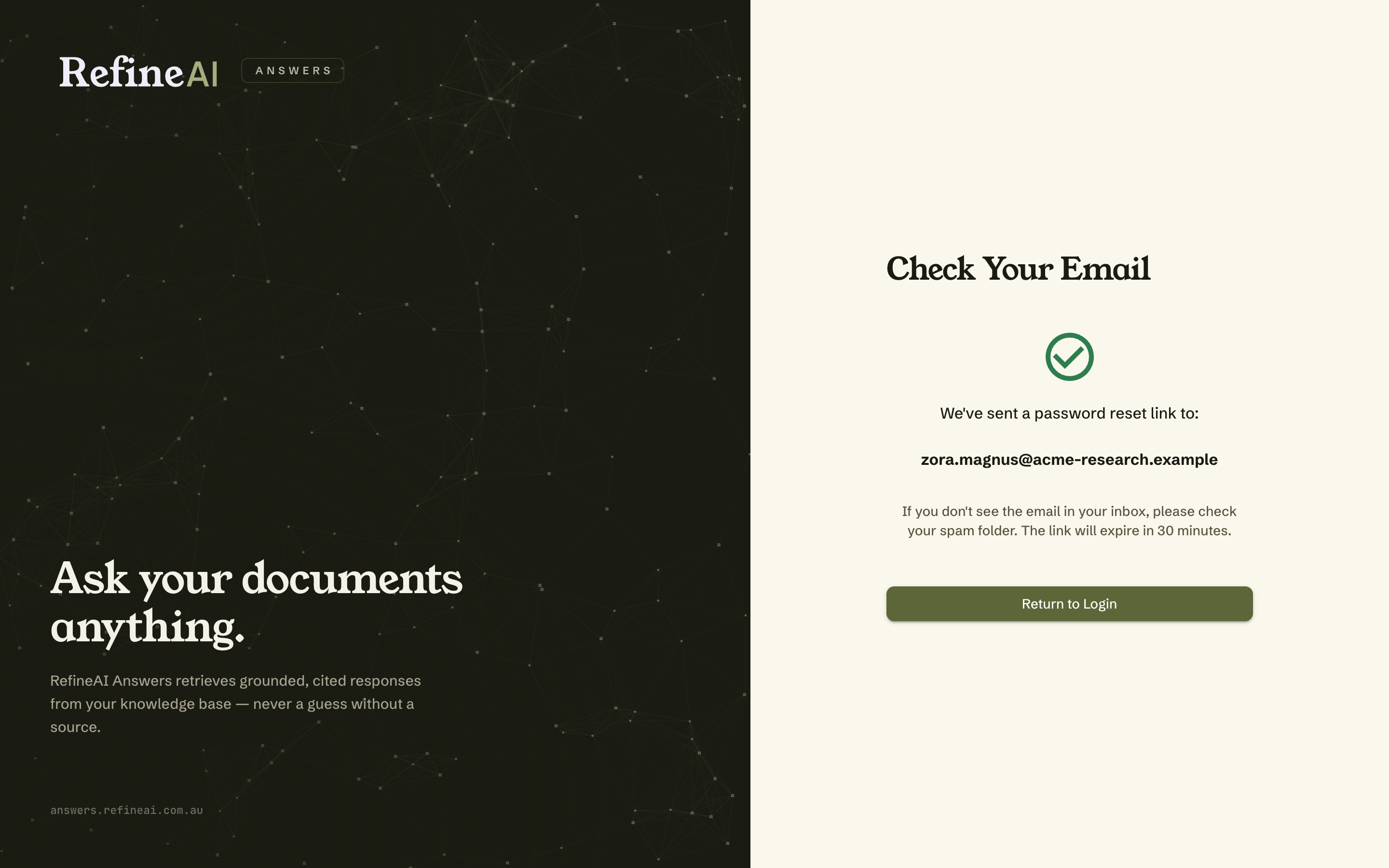
- Open the email and follow the reset password link.
- Choose a new password (minimum 8 characters) and confirm it.
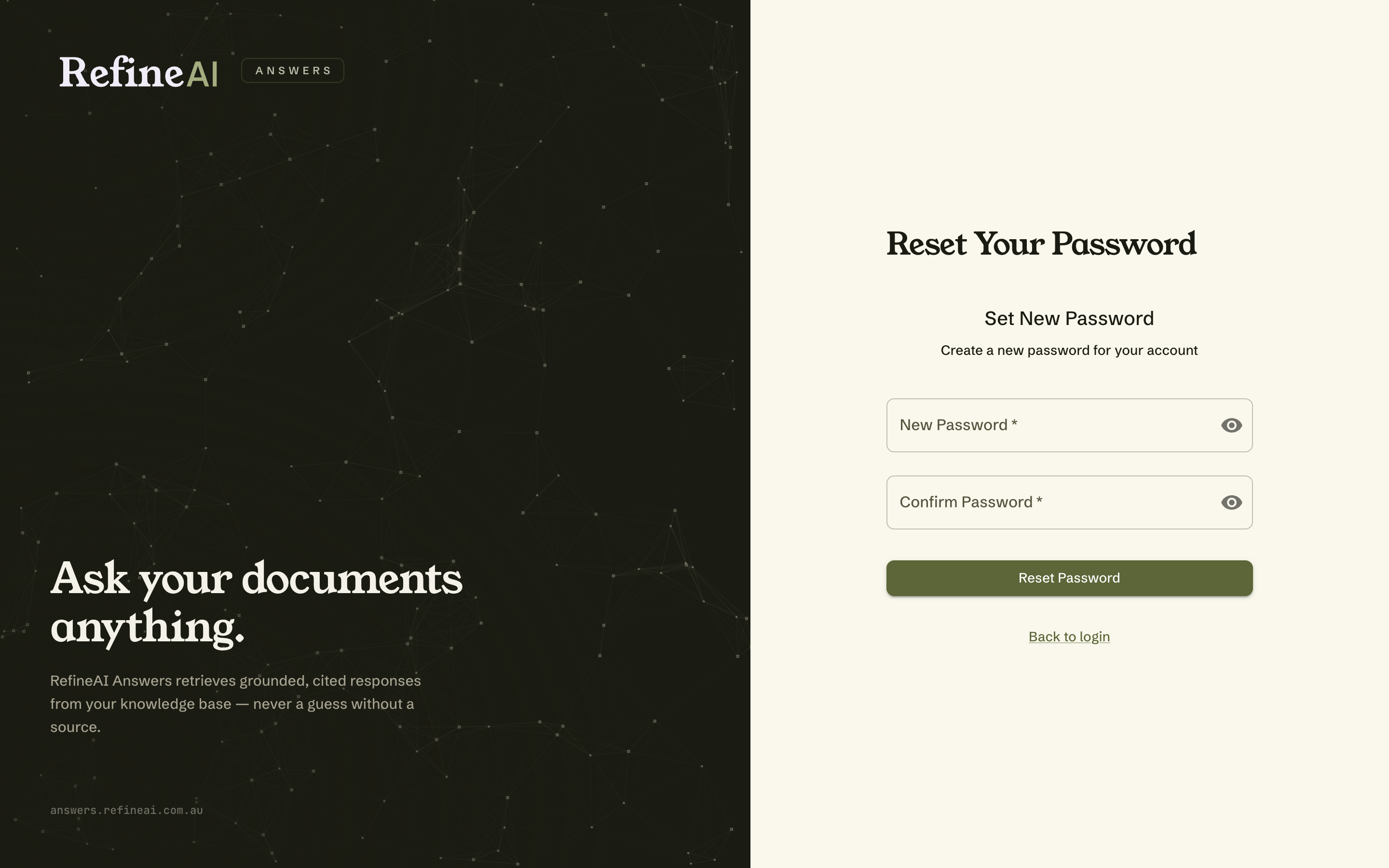
- You're returned to the sign-in page with a success banner — sign in with your new password.
The reset link is time-limited and single-use. If it has expired, just request a new one.
Multi-factor authentication (MFA)
If MFA is enabled on your account, you'll be asked for a 6-digit verification code after entering your password. Enter the code from your authenticator to finish signing in. You can enable or disable MFA yourself — see Profile and security.
Sessions and signing out
- Your sign-in is per browser tab: closing the tab ends the working session, but your browser can quietly re-establish it when you return, until the longer-lived session expires or you sign out.
- To sign out explicitly, use Logout at the bottom of the sidebar, or open the avatar menu (top-right) and choose Sign out.
Next: Your dashboard →