Users, roles and permissions
Who can do this: the Users area is visible to Admins and Owners only.
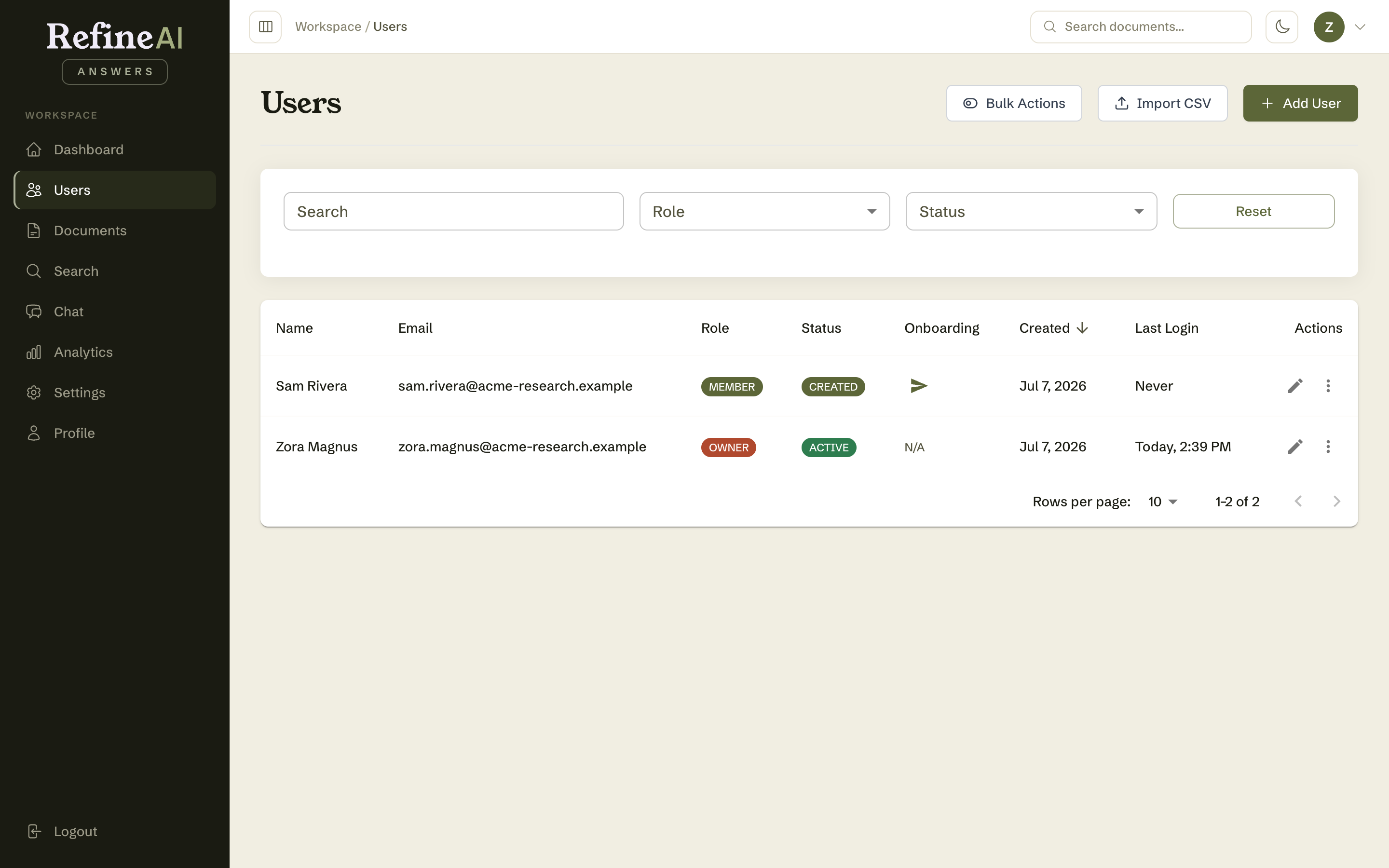
Users in the sidebar lists everyone in your organisation, with their role, account status, MFA state, and last sign-in.
Roles
Every user has exactly one organisation role:
| Role | Ask & search | Upload & manage documents | View analytics | Manage users | Manage settings |
|---|---|---|---|---|---|
| Viewer | ✅ | — | ✅ | — | — |
| Member | ✅ | ✅ | ✅ | — | — |
| Admin | ✅ | ✅ | ✅ | ✅ | ✅ |
| Owner | ✅ | ✅ | ✅ | ✅ | ✅ |
- Owner is the organisation's ultimate authority. Ownership can't be handed out through the edit form — existing users can't be promoted to Owner there.
- Give Viewer to people who should consume answers but not alter the knowledge base — it's a safe default for broad rollouts.
Account statuses
A user's account status describes where they are in their lifecycle:
| Status | Meaning |
|---|---|
| CREATED | Account exists but the user hasn't been onboarded yet. |
| UNVERIFIED | Waiting on email verification. |
| ONBOARDING | Invited; the user is partway through onboarding. |
| ACTIVE | Normal, fully working account. |
| SUSPENDED | Access removed by an administrator (reversible). |
| LOCKED | Locked automatically after repeated failed sign-ins (clears after 15 minutes). |
| ARCHIVED | Deactivated and kept for the record. |
Finding people
The list supports free-text search on name/email, plus filters by role and account status, with pagination for larger organisations.
Keyboard shortcuts
On the user list:
- Ctrl/Cmd + N — create a new user
- Ctrl/Cmd + I — import users from CSV
- Ctrl/Cmd + E — toggle bulk-edit mode (select multiple users to delete, force password resets, send onboarding emails, or change roles in one action)
Next: Adding users →