Uploading documents
Everything RefineAI Answers knows comes from the documents you upload. This page covers what you can upload, how the upload flow works, and what happens to a document after you add it.
Who can do this: Members, Admins and Owners. Viewers have read-only access.
What you can upload
| Format | Types | Notes |
|---|---|---|
.pdf | Text-based PDFs work best; the text is extracted and indexed. | |
| Word | .docx | Standard Word documents. |
| Excel | .xlsx | Rows are extracted so figures in spreadsheets become answerable. |
| Markdown | .md, .markdown | Headings become sections; tables, lists and code blocks are kept as written. |
| Plain text | .txt | Notes, transcripts, exported logs. |
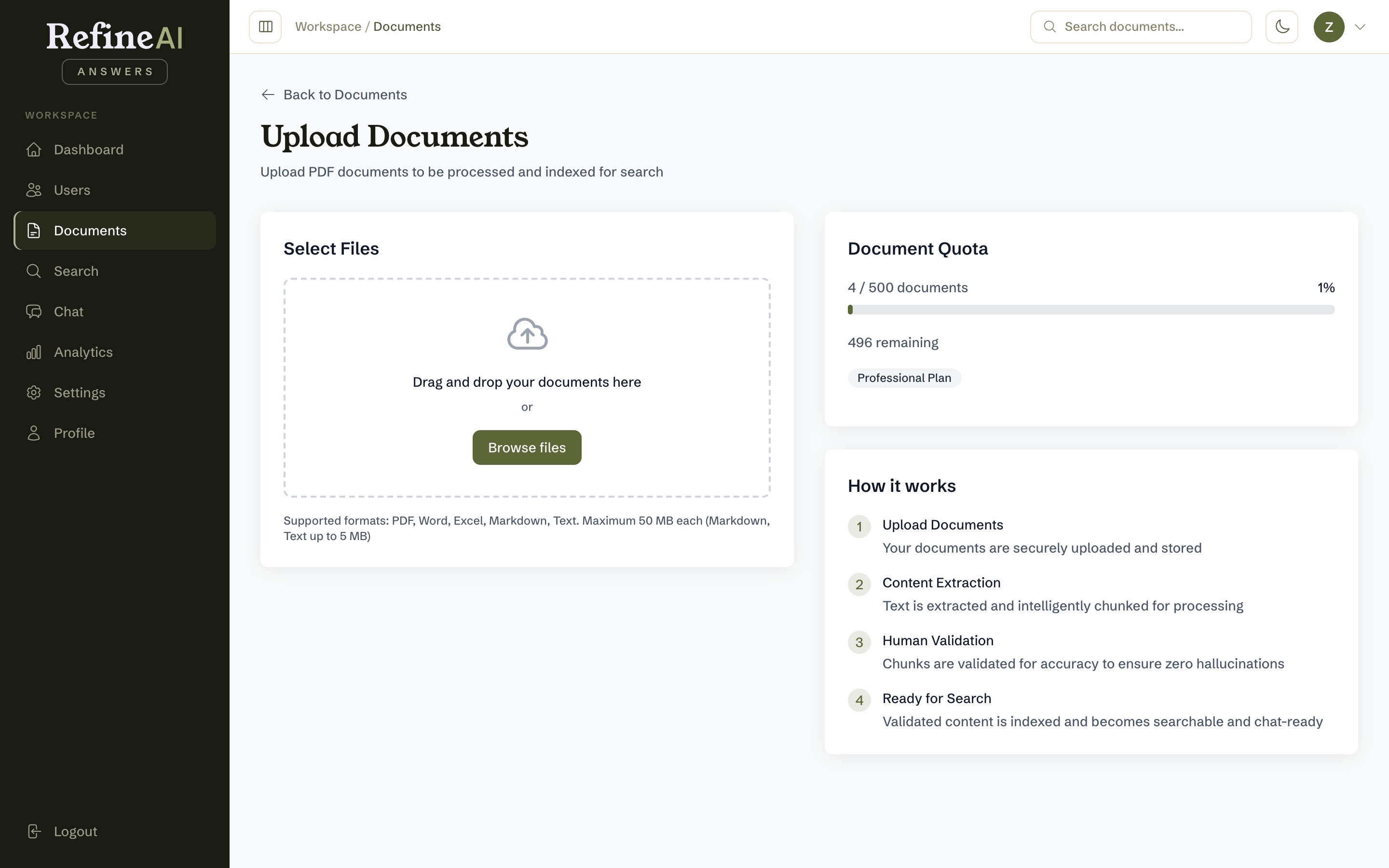
- Maximum size: 50 MB per file for PDF, Word and Excel; 5 MB per file for Markdown and plain text.
- Markdown and plain-text files must be UTF-8 encoded (the default in most editors). If a text file is rejected, re-save it as UTF-8 and try again.
- You can upload multiple files at once.
- Your plan includes a document quota — the Document Quota panel on the upload page shows how much you've used (e.g. 4 / 500 documents).
Uploading
- Go to Documents in the sidebar and select Upload (or use the dashboard quick action).
- Drag and drop files onto the drop zone, or select Browse files.
-
Each file joins the File Queue with a pending badge. Remove any file you've second-guessed with the × on its row, or Clear all to start over.
-
Extraction strategy — each file is processed by a strategy suited to its type (e.g. Technical PDF Extractor). When only one strategy applies it is selected automatically and shown on the file's row; if several apply, pick one from the dropdown on the row before uploading. Your administrator configures which strategies are available — see Extraction settings.
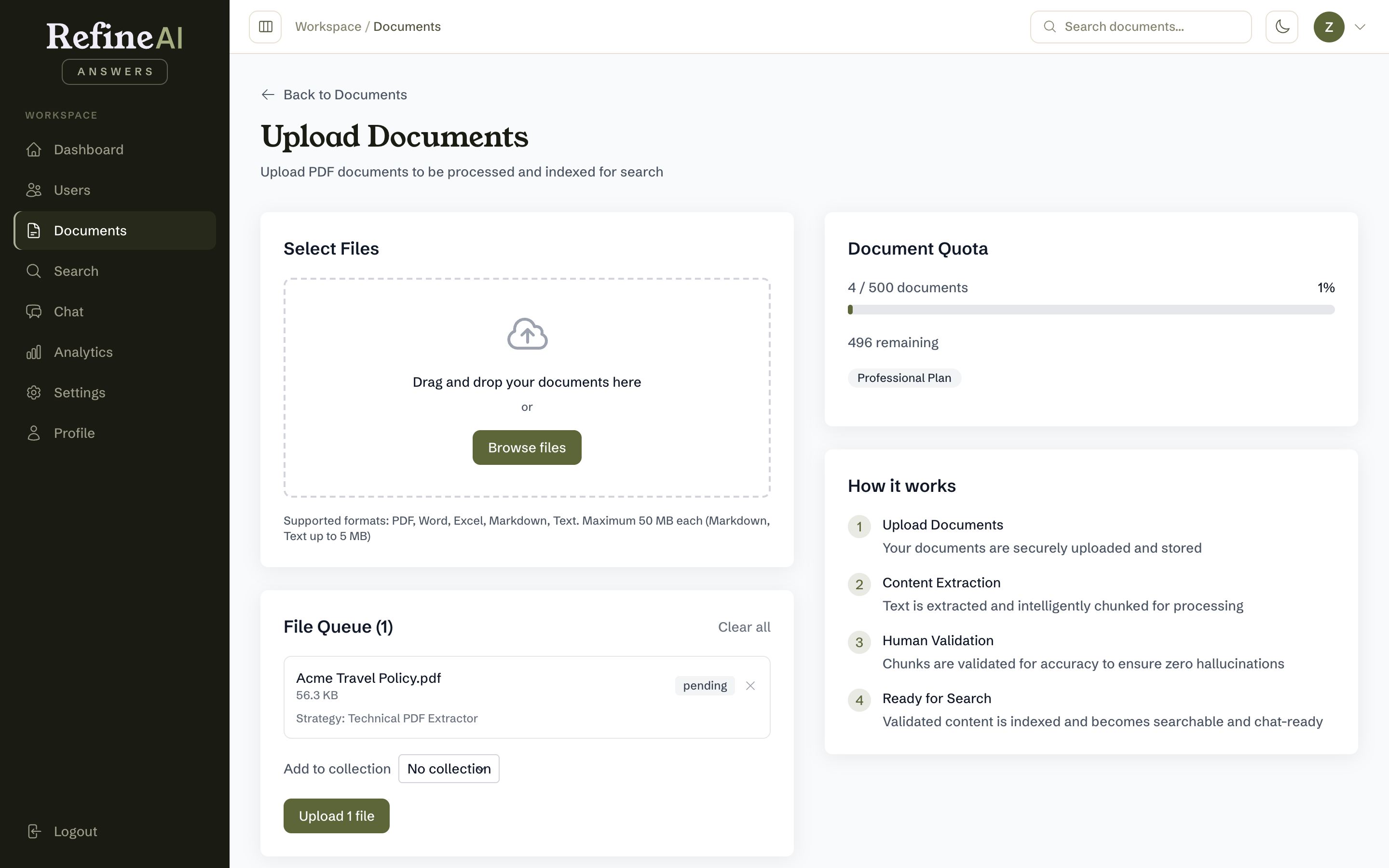
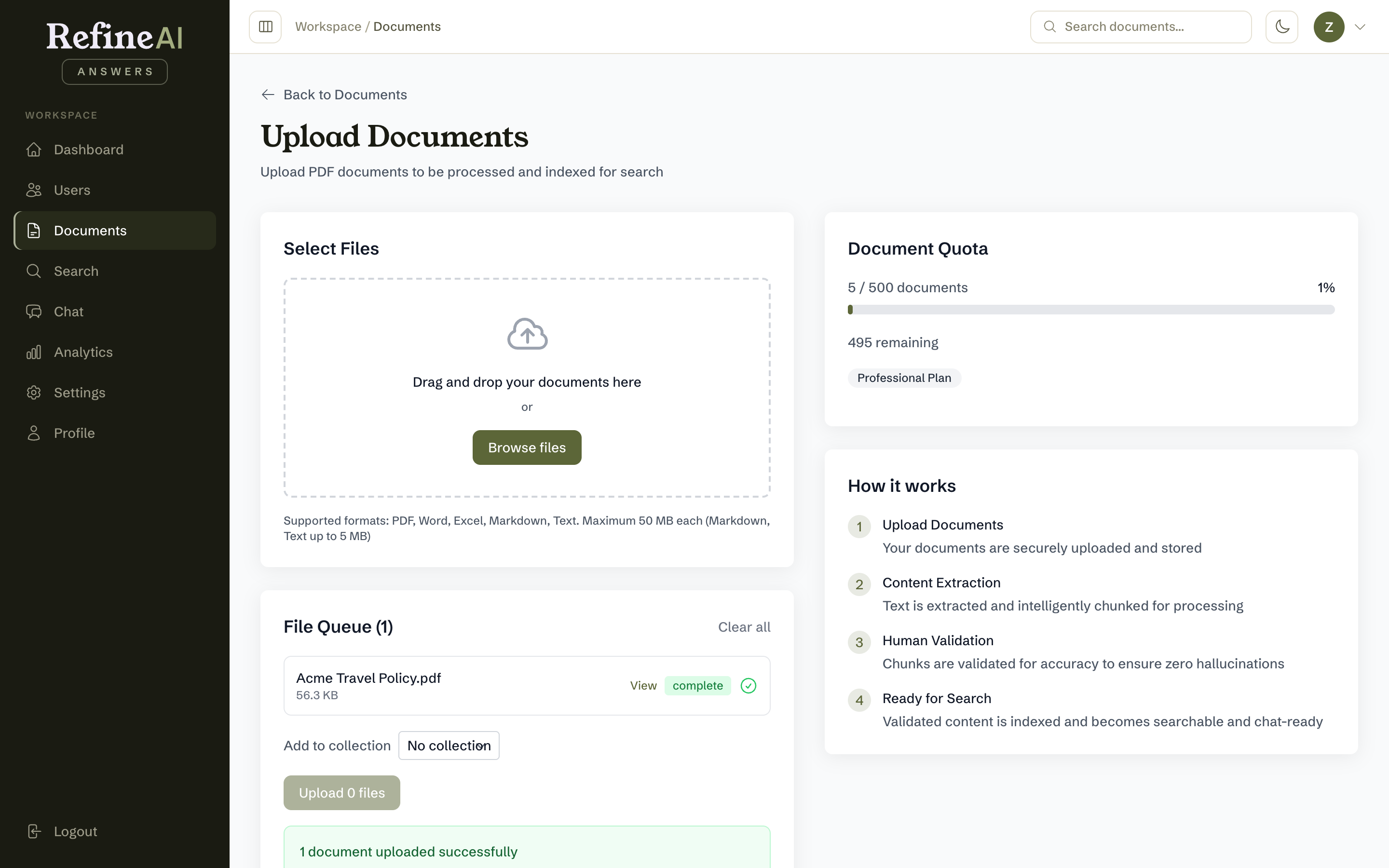
- Select Upload N files. Progress is shown per file, and a summary reports how many succeeded. From the summary you can jump straight to any uploaded document with its View link.
What happens next
Processing is automatic and usually takes under a minute per document:
- Presigned / Queued — the file is stored securely and waits its turn.
- Processing — text is extracted and split into chunks (passages small enough to search precisely). For PDFs, images such as charts, diagrams and product photos are also described in words so that what is printed on them becomes searchable (see Figures in PDFs).
- Processed — chunks are ready and being embedded for semantic search.
- Indexed — the document is fully searchable and available to Chat. ✅
You can watch the status change in the document library:
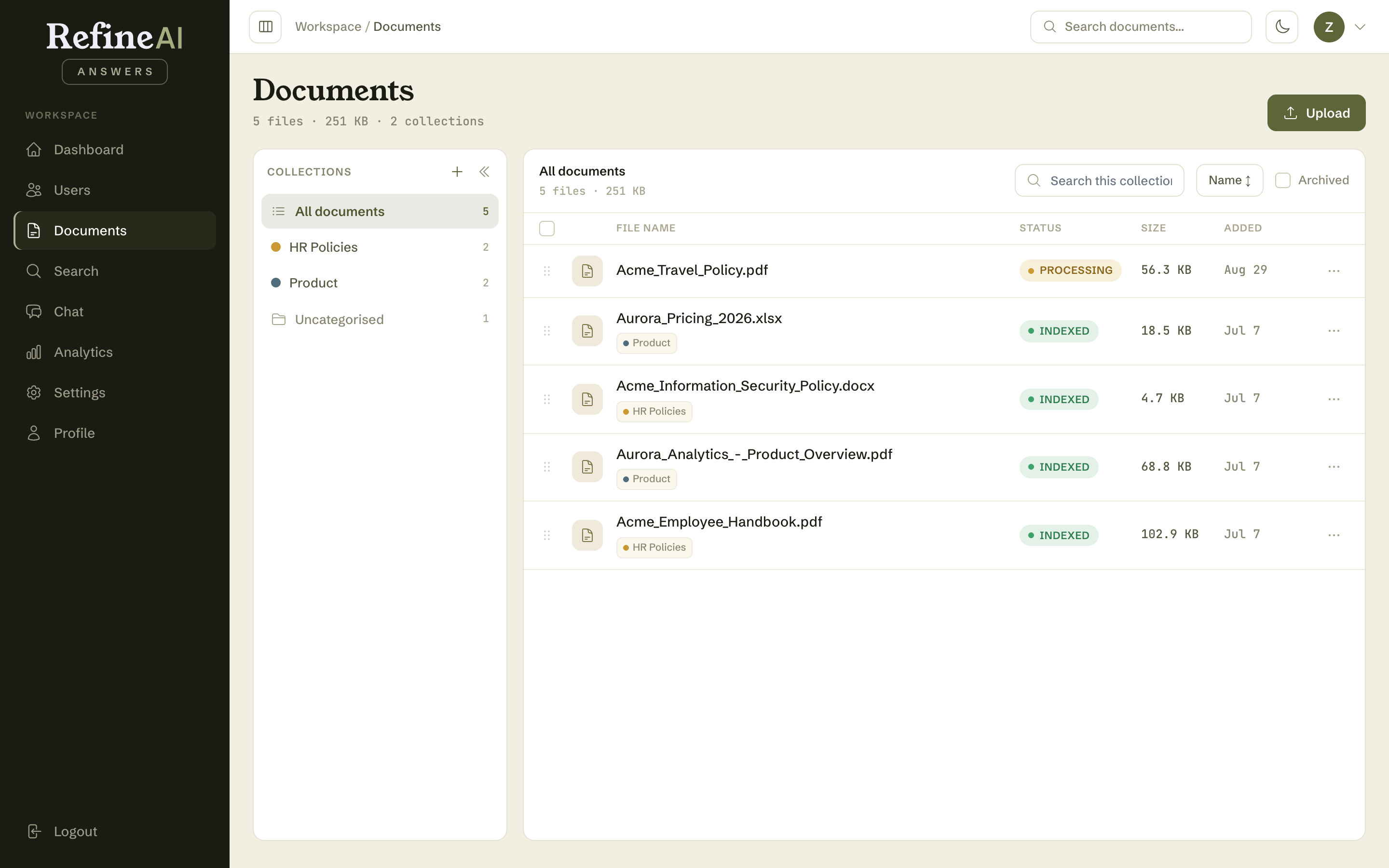
When every document shows a green INDEXED badge, your knowledge base is up to date. If something goes wrong the document shows FAILED — open its details page to see the timeline and retry with Reprocess. The full list of statuses is in the status reference.
Tip — quality in, quality out. The clearer and more current your documents, the better the answers. When a policy changes, upload the new version (see Document details — versions) rather than leaving both copies live, and use Gap analysis to learn what's missing.