Document Chat
Chat is where you ask questions and get cited answers from your organisation's documents. Open it from the sidebar, the Ask the docs button, or the dashboard's Ask a question quick action.
Asking a question
- Type your question into the box at the bottom — plain English is exactly right.
- Press Enter to send (Shift+Enter inserts a new line).
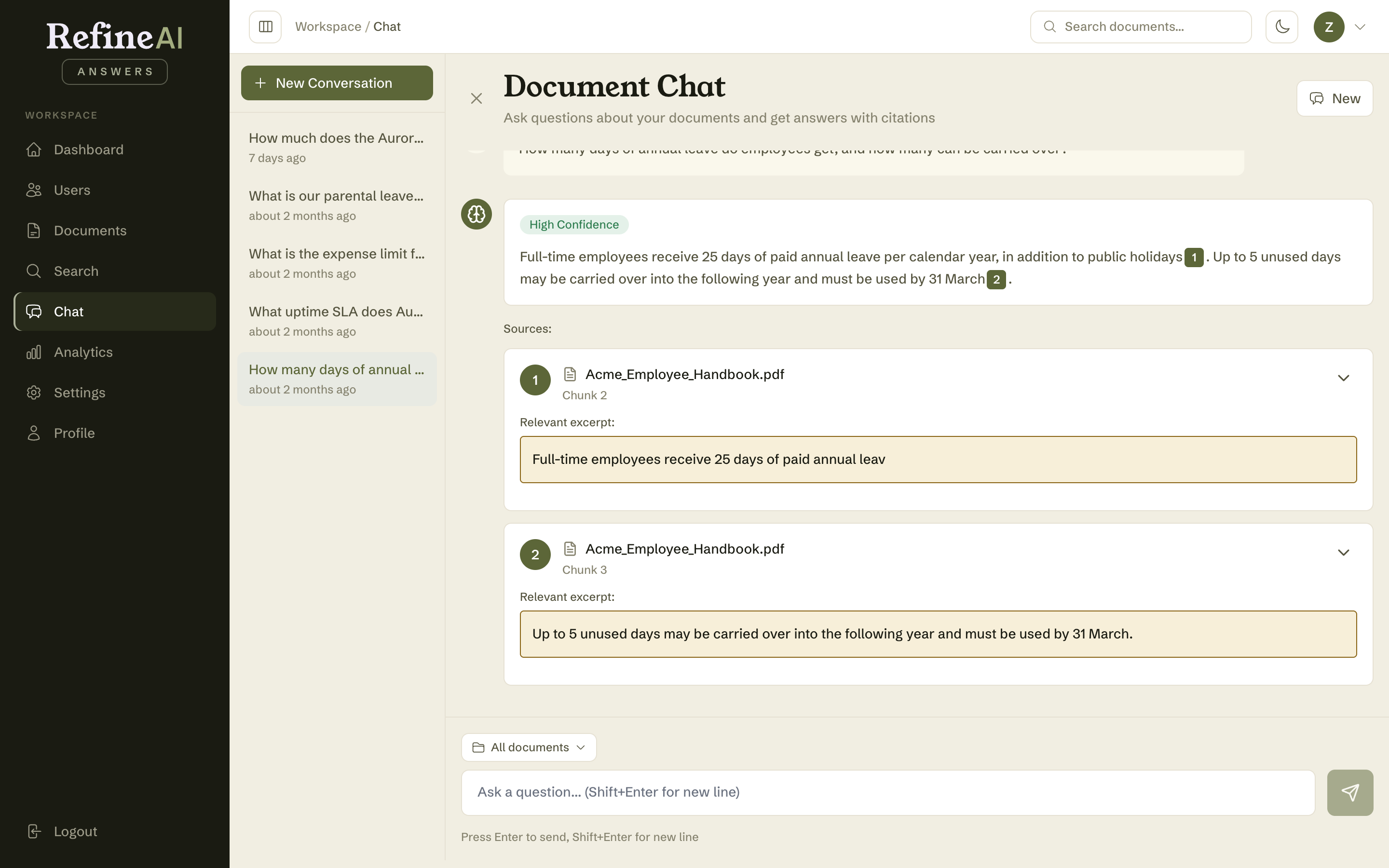
- The answer arrives with a confidence badge, citation markers, and its sources listed underneath.
Some questions that work well:
- "How many days of annual leave do employees get, and how many can be carried over?"
- "What uptime SLA does Aurora offer on the Growth tier, and what does that tier cost per month?"
- "What is the expense limit for hotel accommodation?"
Notice these are specific. "Tell me about leave" will answer, but "How many days can I carry over?" answers better — retrieval works on meaning, and a precise question pins down precise passages.
Reading the answer
Every answer includes:
- a confidence badge — High Confidence through Insufficient Data,
- the answer text with numbered citation markers like [1] and [2],
- a Sources list showing, for each citation: the document (linked), the chunk it came from, a relevance band, and the exact excerpt that supports the claim.
Understanding these signals is worth five minutes of your time — see Understanding answers, citations and confidence.
Conversations
Chat keeps context within a conversation — follow-ups like "and how does that change after probation?" understand what "that" refers to.
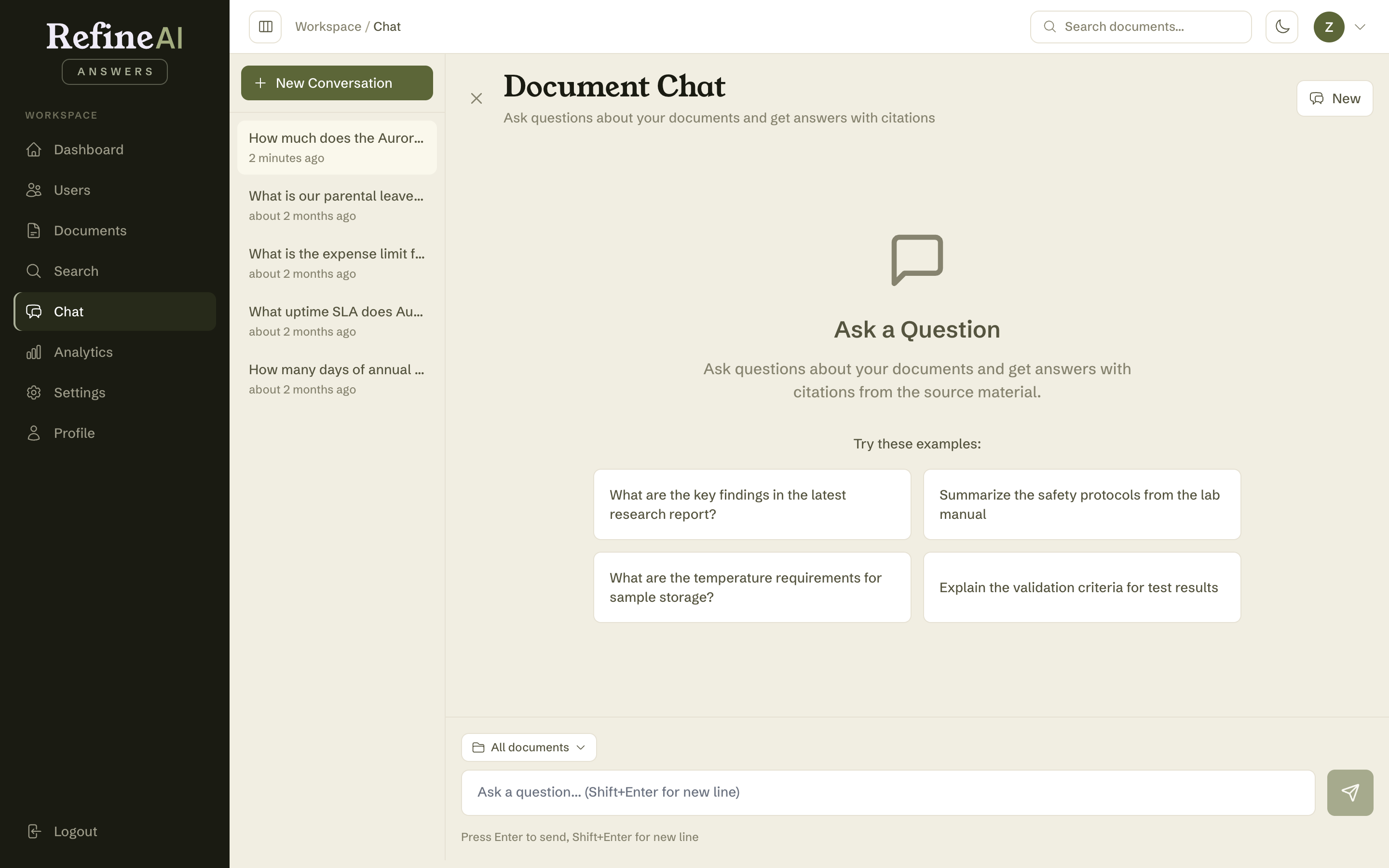
- New Conversation starts a fresh thread with no carried-over context. Start a new one when you change topic; it keeps answers sharp and your history tidy.
- The sidebar lists your recent conversations, titled by their first question. Select one to reopen it and continue where you left off.
Focusing answers on a collection
By default a conversation considers your whole library. When you know where the answer lives — or want to be certain other material can't bleed in — restrict the conversation to one or more collections with the scope picker next to the question box:
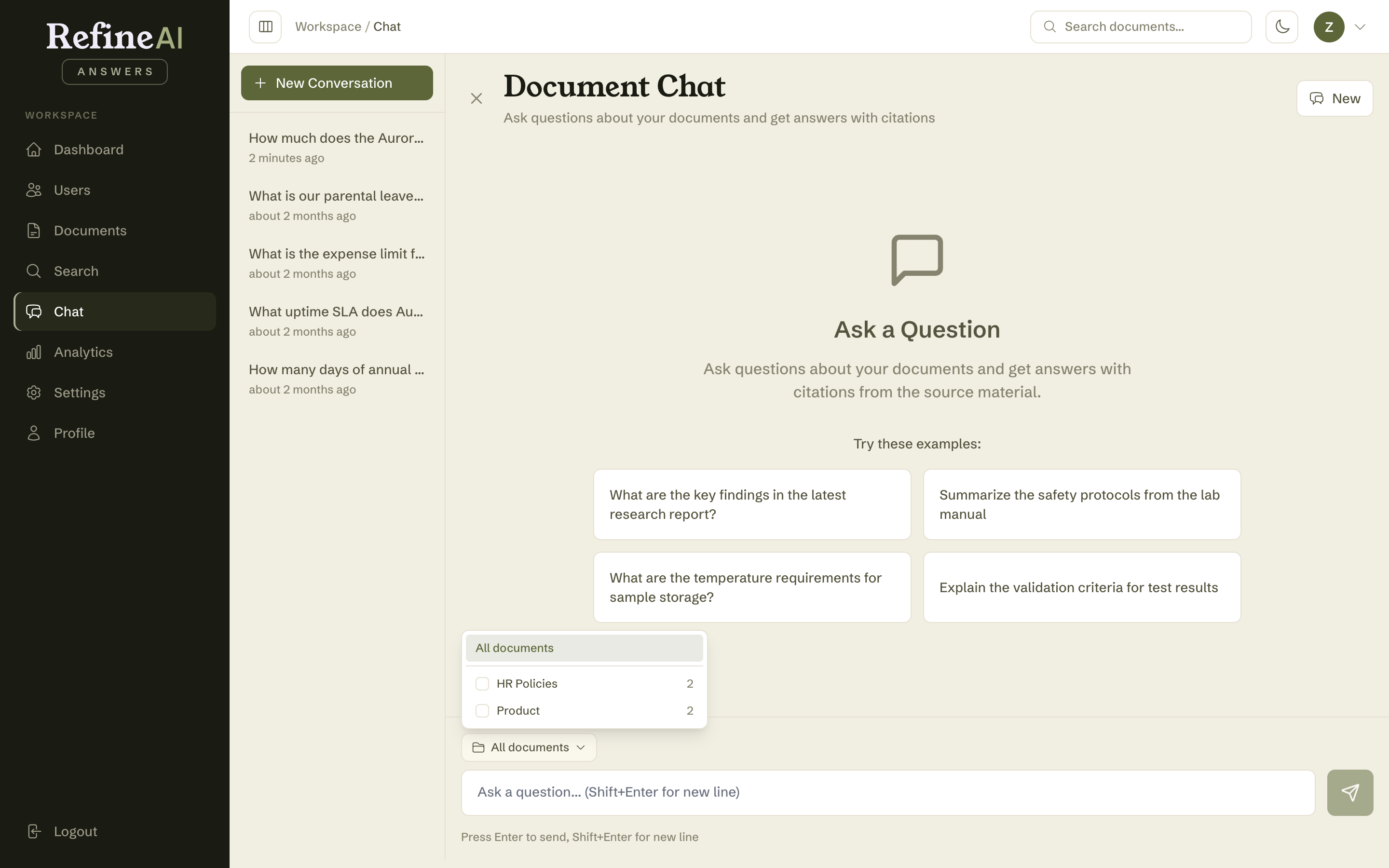
- All documents (the default) answers from the entire library.
- Tick one or more collections to answer only from their documents. The choice sticks for the whole conversation — follow-ups stay focused until you change it.
- Scoped answers say so: an Answered from badge names the collections the answer drew on.
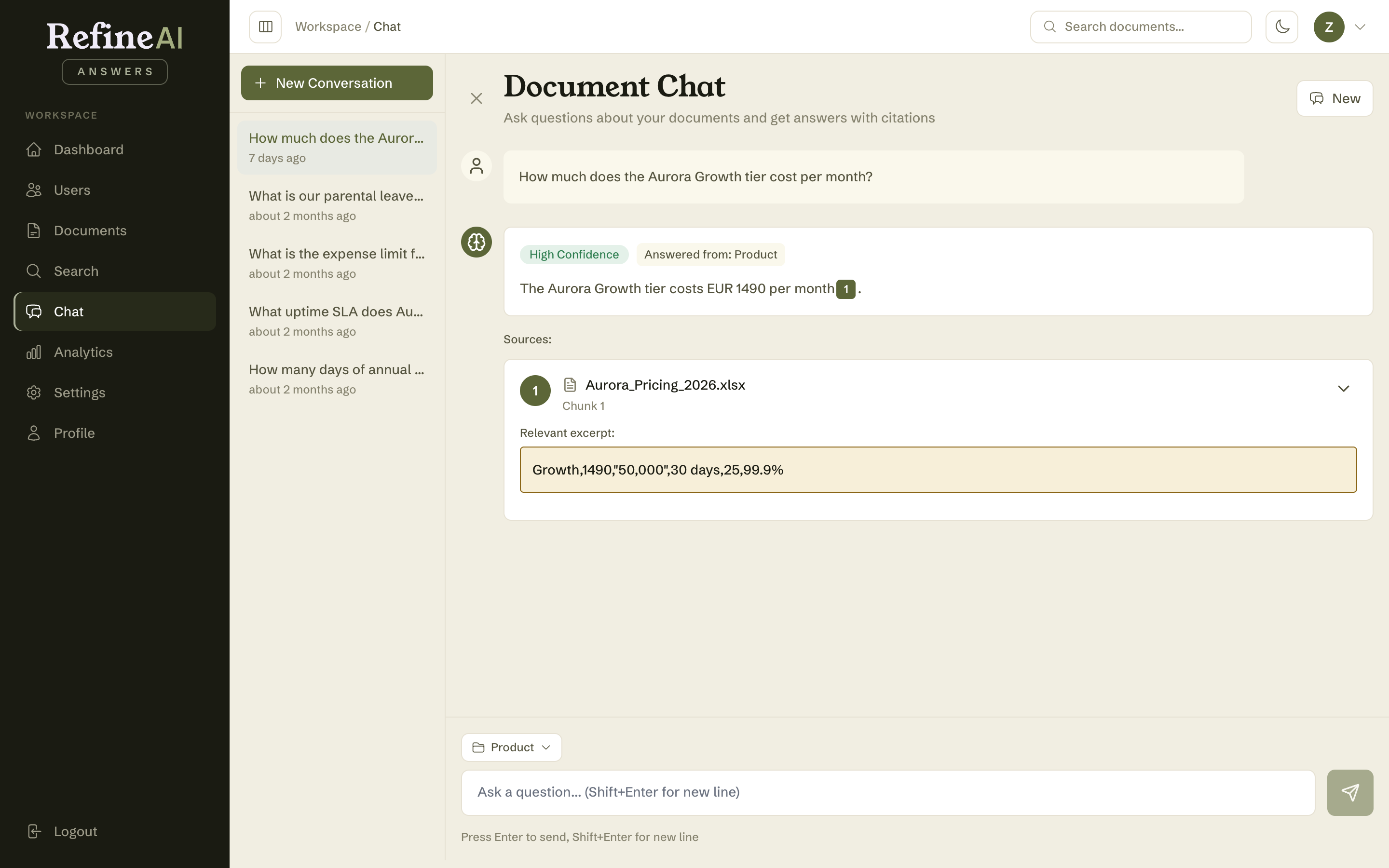
If the scoped collections don't contain the answer, you'll get an honest no answer rather than one quietly drawn from elsewhere — widen the scope back to All documents and ask again.
Tip: scope narrows retrieval, not permissions — it's a focus tool, not an access control.
When there's no answer
If your documents don't cover the question, RefineAI Answers says so — you'll get an Insufficient Data badge, an explanation of what the documents do cover, and suggested next steps rather than a guess:
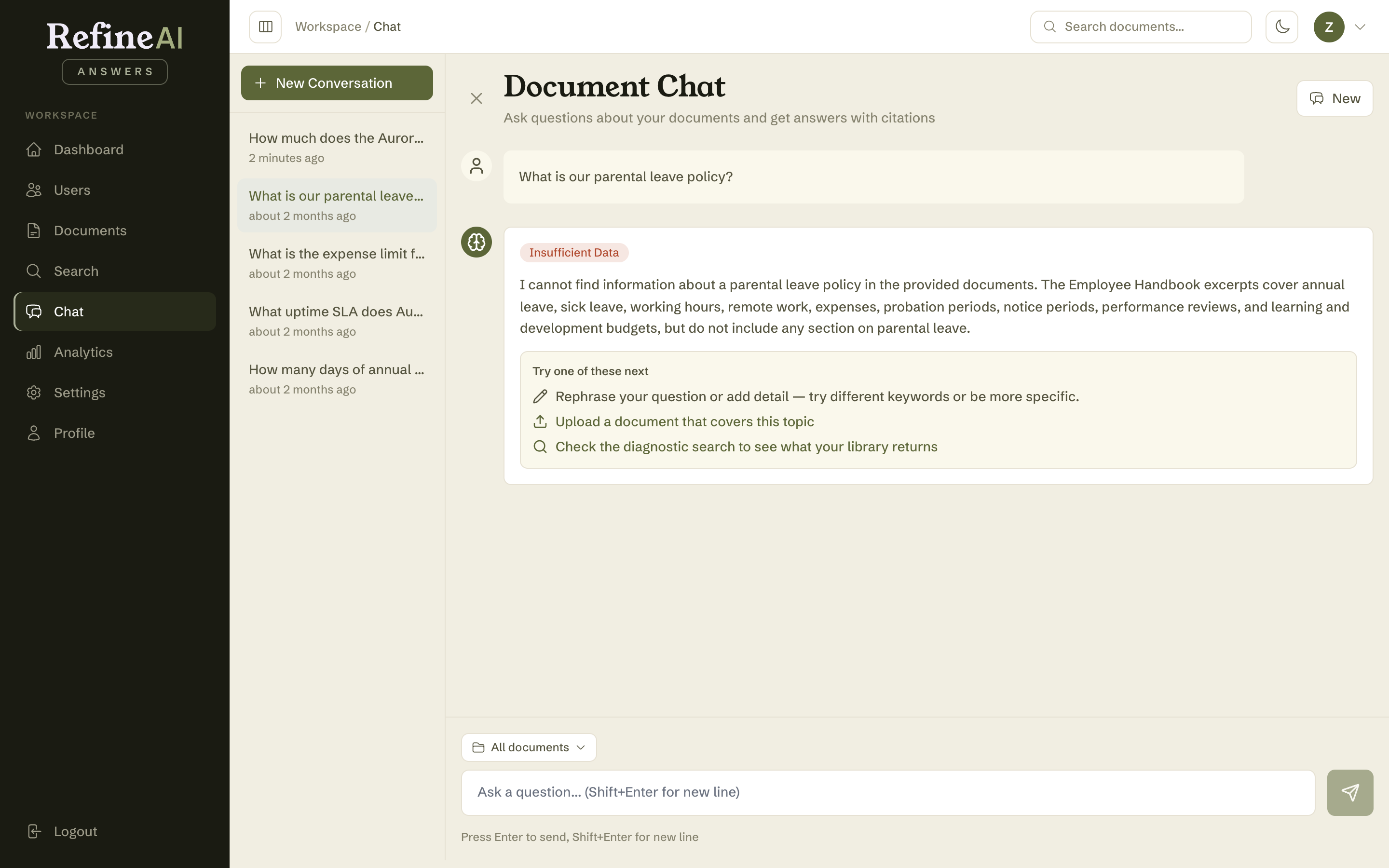
Every unanswered question is also logged in Gap analysis, so whoever curates your knowledge base can see the pattern and fill the gap.