Collections
Collections are named, colour-coded groups that keep a growing library navigable — HR Policies, Product, Contracts, whatever fits how your team thinks. A document can belong to any number of collections.
Collections also power focused answers: Chat can restrict a conversation to one or more collections, so questions are answered only from those documents. By default the whole library is considered — see Focusing answers on a collection.
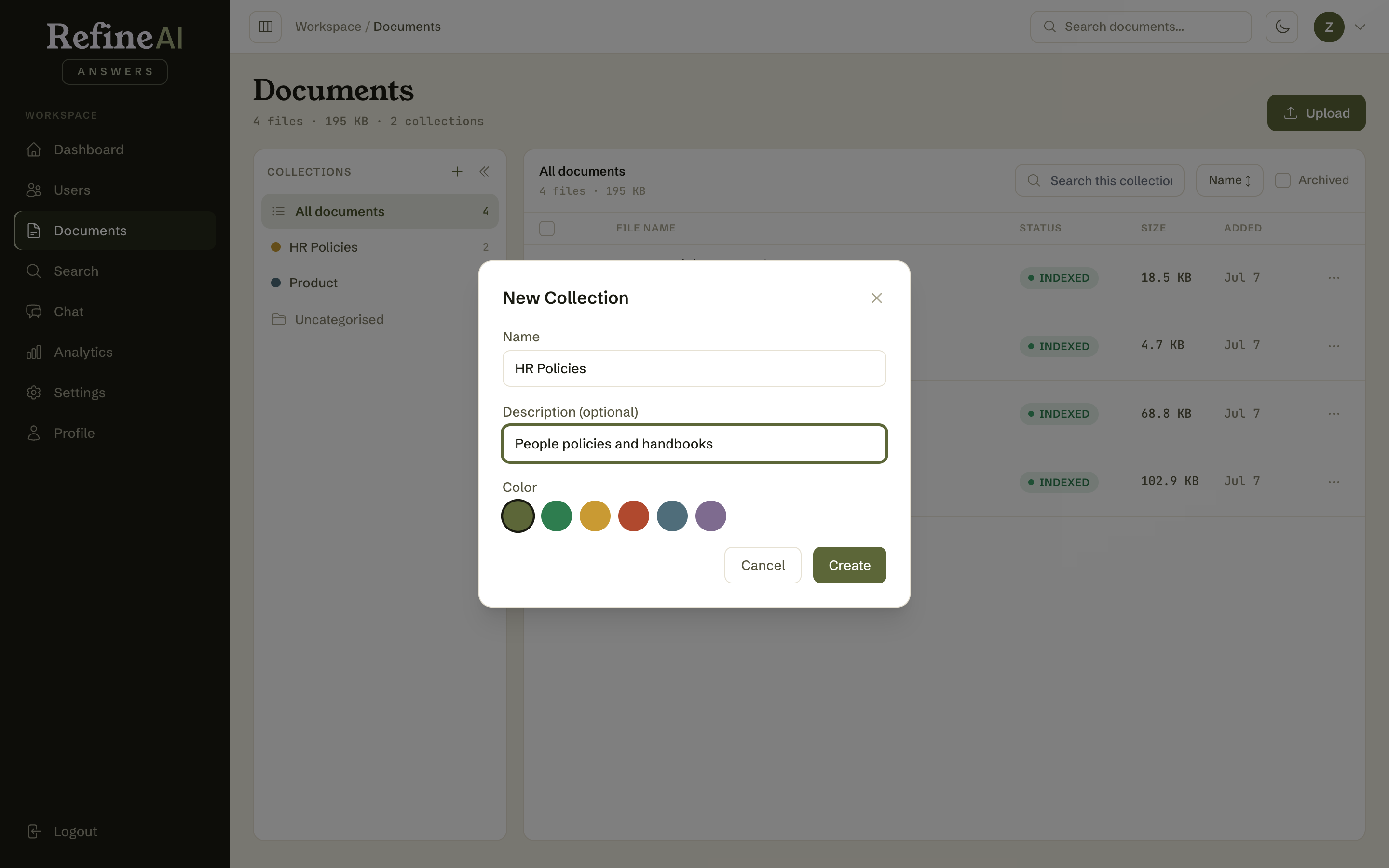
Creating a collection
- In Documents, find the Collections panel on the left.
- Select the + (New collection) button.
- Give it a name, an optional description, and pick a colour.
- Select Create.
Adding documents to a collection
Three ways, from one document to hundreds:
- One document — open its ⋯ menu and choose the collection under Add to collection, or drag the row onto the collection in the sidebar.
- Several documents — tick their checkboxes (hold Shift to select a range), then pick the collection from Add to collection… in the selection bar, or drag any ticked row onto the collection to move them all at once. See Selecting multiple documents.
- At upload — choose the collection on the upload page, or upload while viewing a collection, and new files land there directly.
The document gains a coloured badge and the collection's count goes up in the sidebar. To remove one, open its ⋯ menu and pick the collection under Remove from — the document itself is untouched.
Collection membership is applied at question time, so there is nothing to re-upload or re-process: the moment a document is filed, scoped questions in Chat and Teams include it (or exclude it) on the next answer.
Browsing by collection
Select a collection in the sidebar to filter the list to just its documents.
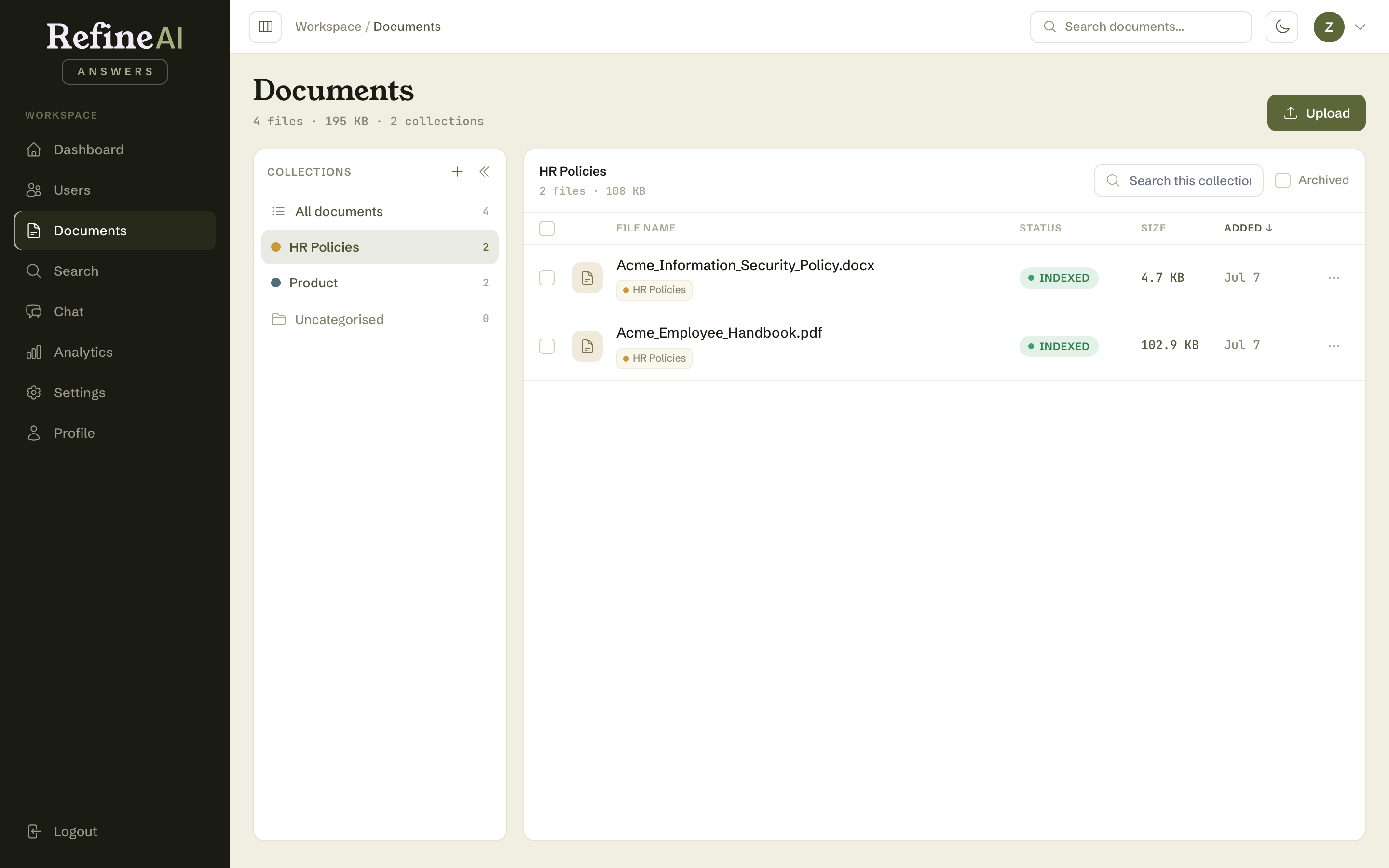
- All documents returns to the full library.
- Uncategorised shows documents that belong to no collection yet — a handy to-file tray.
Tip: create collections around how questions arrive, not around your folder structure. If the people-team fields HR questions and the sales team fields pricing questions, HR Policies and Pricing will serve you better than 2026 uploads.
Next: Document Chat →