Managing your document library
Documents in the sidebar opens your library: every file your organisation has uploaded, its processing status, and the tools to keep the collection tidy.
Reading the list
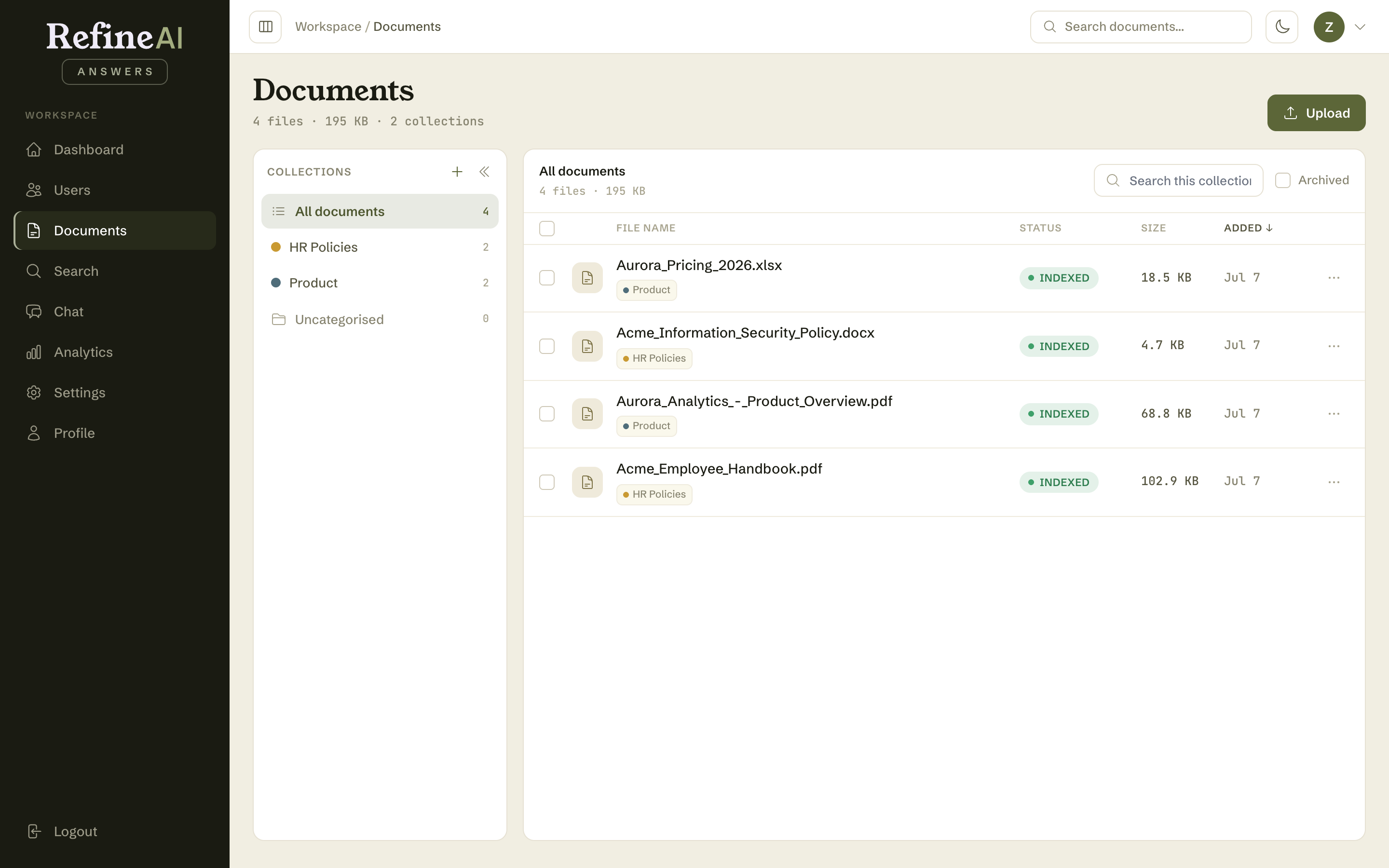
Each row shows:
- A checkbox on the left for selecting several documents at once.
- File name — select it to open the details page.
- Collection badges — which collections the document belongs to.
- Status — green INDEXED means ready to answer questions; amber means in progress; red FAILED needs attention. Full list: document statuses.
- Size and Added date.
- A ⋯ menu on the right with per-document actions.
Hover a row and a drag handle (⠿) appears at its left edge — drag the row onto a collection in the sidebar to file it there (see Collections).
The header above the list summarises the library: number of files, total size, and collection count.
Finding a document
- Search this collection — filters the current view by filename as you type.
- Sort — select a column header (File name, Status, Size or Added) to sort by it; select it again to flip between ascending and descending. An arrow marks the active column. The default is Added, newest first.
- Archived — tick to include archived documents, which are hidden by default.
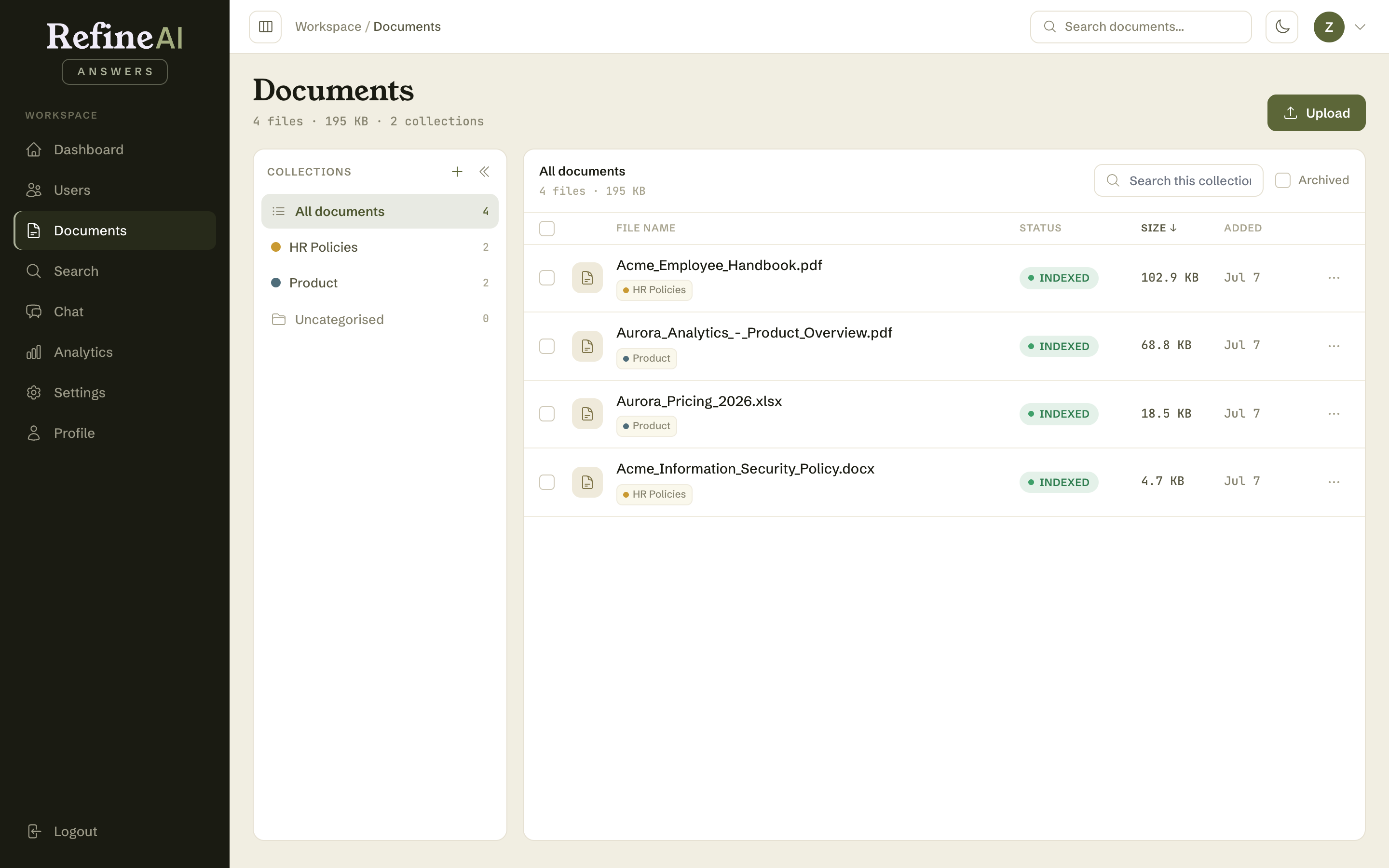
The sidebar's Collections panel filters the list to one collection — see Collections.
The ⋯ menu
Open the ⋯ menu on any row for quick actions:
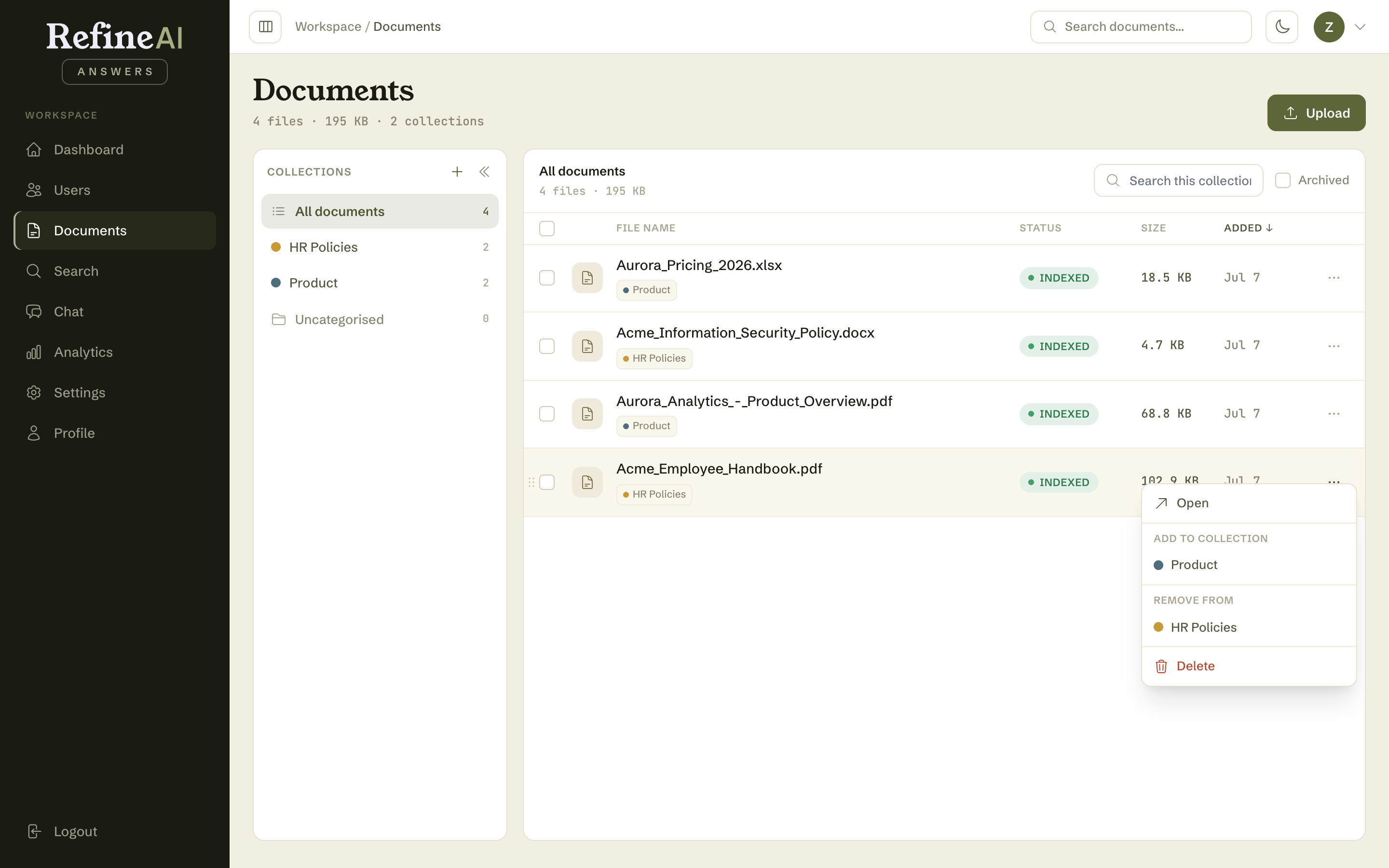
- Open — the document's details page.
- Add to collection — file it under any collection you've created.
- Remove from — take it out of a collection (the file itself is untouched).
- Delete — permanently remove the document and all its processed chunks. You'll be asked to confirm; this cannot be undone, and answers will no longer draw on this document.
Deleting vs archiving: deleting is permanent. If you want a document out of the way but recoverable, open its details page and archive it instead.
Selecting multiple documents
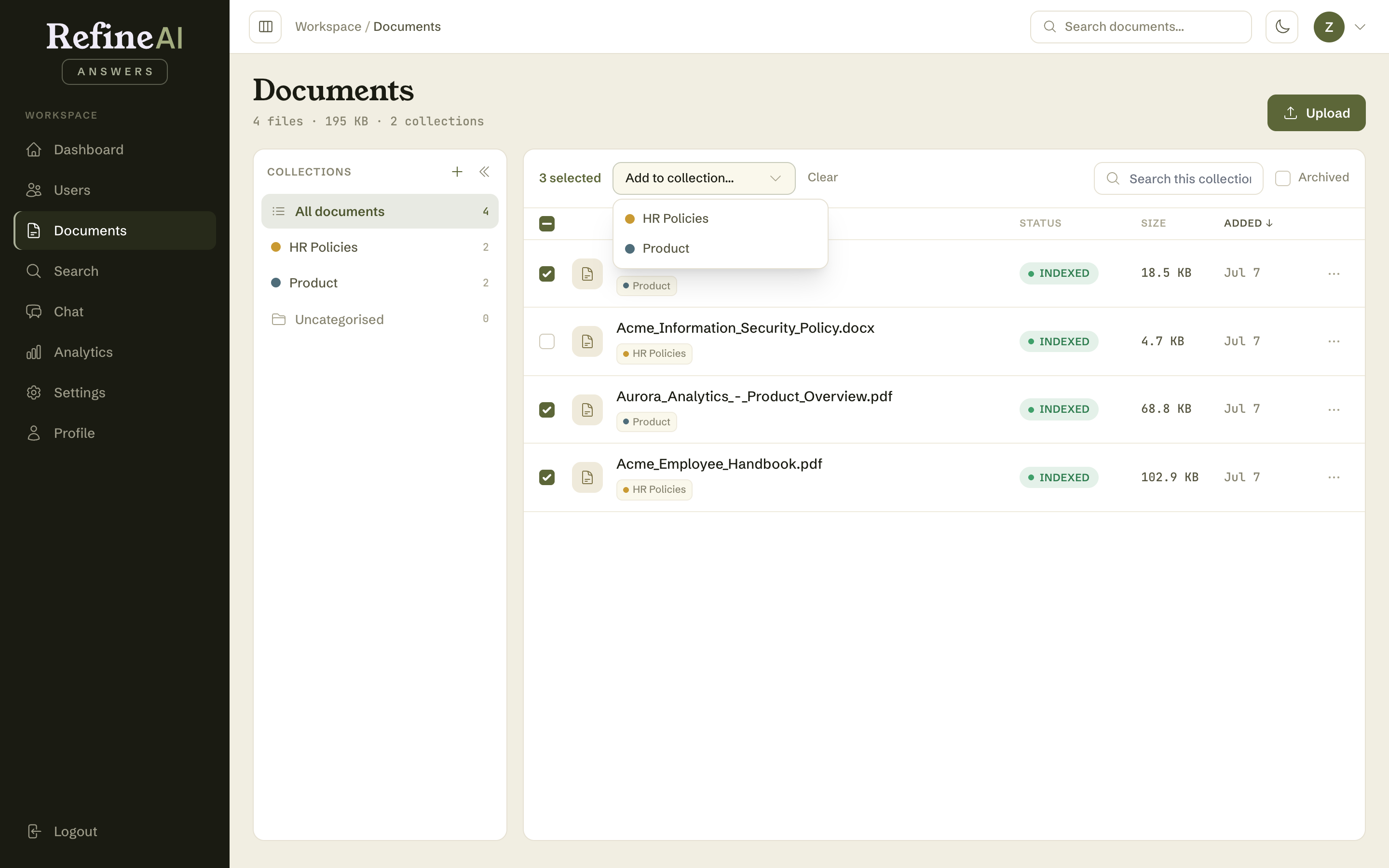
Tick the checkbox on each row to build a selection. As soon as one document is ticked, the toolbar swaps to a selection bar showing how many are selected, an Add to collection… menu, and Clear.
Ways to select faster:
- Shift-click — tick one row, then hold Shift and tick another: every row between them is selected too. Works in whatever order the list is currently sorted.
- Select all — the checkbox in the column header ticks every document in the current view (so filter or search first to narrow it).
- Drag the selection — drag any ticked row onto a collection in the sidebar and the whole selection is filed there in one move. Dragging a row that isn't ticked moves just that one.
Choose a collection from Add to collection… to file everything selected. Documents already in that collection are skipped, and the confirmation says how many were added. Changing the collection filter, searching, or toggling Archived clears the selection, so a bulk action never applies to rows you can't see.
Next: Document details →