Searching your documents
Search finds the passages in your library that best match a query — without composing an answer. Where Chat answers a question, Search shows you the raw material.
When to use which:
- Want a direct answer with citations? → Chat
- Want to see every passage that mentions a topic, or locate where something is written? → Search
Running a search
- Open Search from the sidebar (or the search bar in the header).
- Type your query — natural phrases work better than lone keywords ("hotel accommodation expense limit" beats "hotel").
- Press Enter.
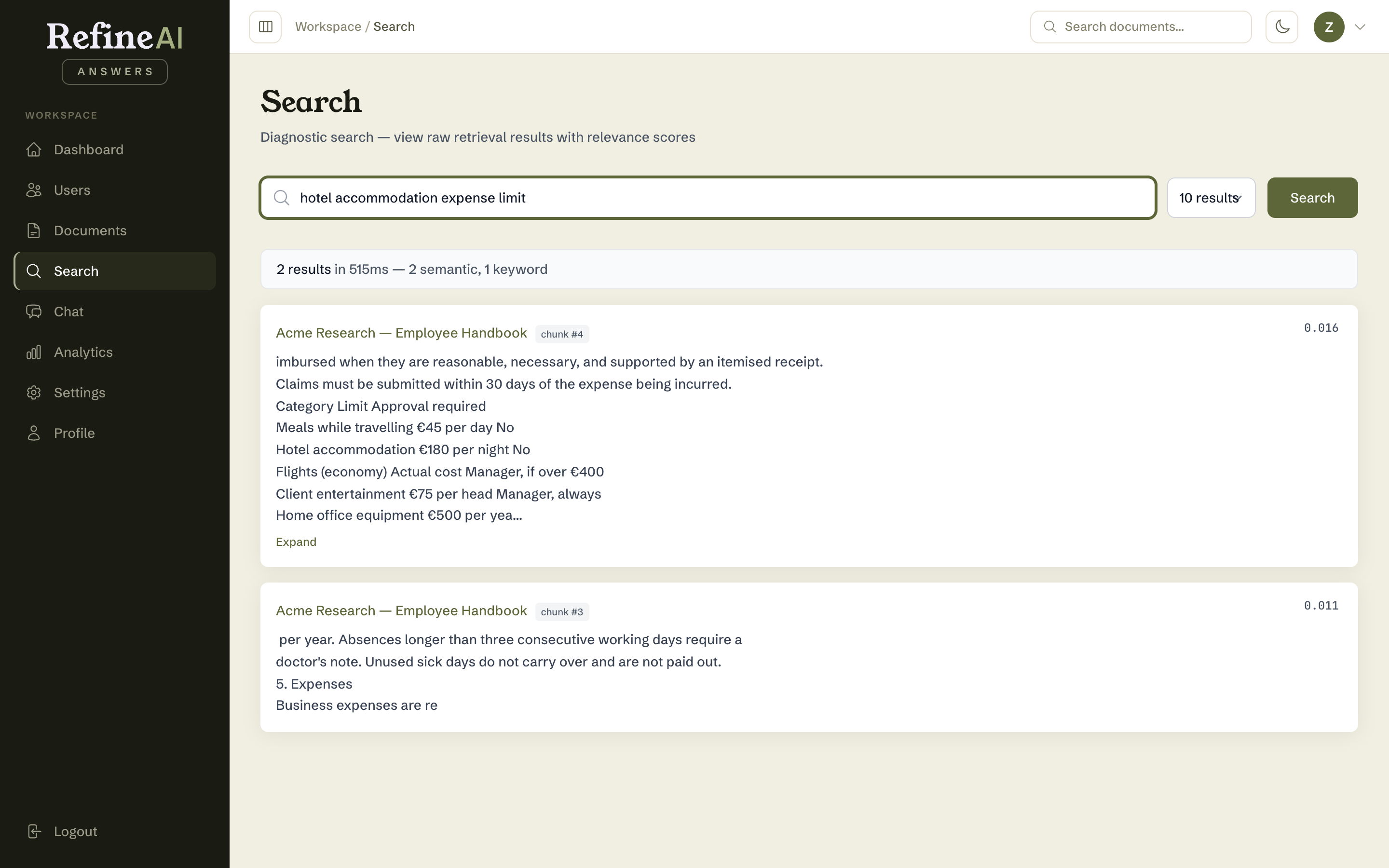
Reading the results
The header reports the total matches and how long the search took. Each result card shows:
- Document name — linked to the details page.
- Chunk badge — which extracted passage this is.
- Relevance score — a colour-coded bar: green (≥ 0.7) is a strong match, amber (0.4–0.7) is moderate, red (< 0.4) is weak.
- The passage text — expandable if truncated.
Results combine semantic matching (meaning) with keyword matching (exact terms), so you'll find "annual leave" content even if you searched "holiday allowance" — and vice versa.
Tip: the page URL carries your query, so you can bookmark a search or paste it to a colleague.
No results, or only weak ones?
- Rephrase with the vocabulary your documents likely use.
- Check the relevant document is INDEXED in the library — documents still processing aren't searchable yet.
- If nothing in the library covers the topic, that's a gap — upload something that does.
Next: Analytics overview →