Your dashboard
After signing in you land on the Dashboard — a live overview of your organisation's knowledge base and the fastest route into the things you do most.
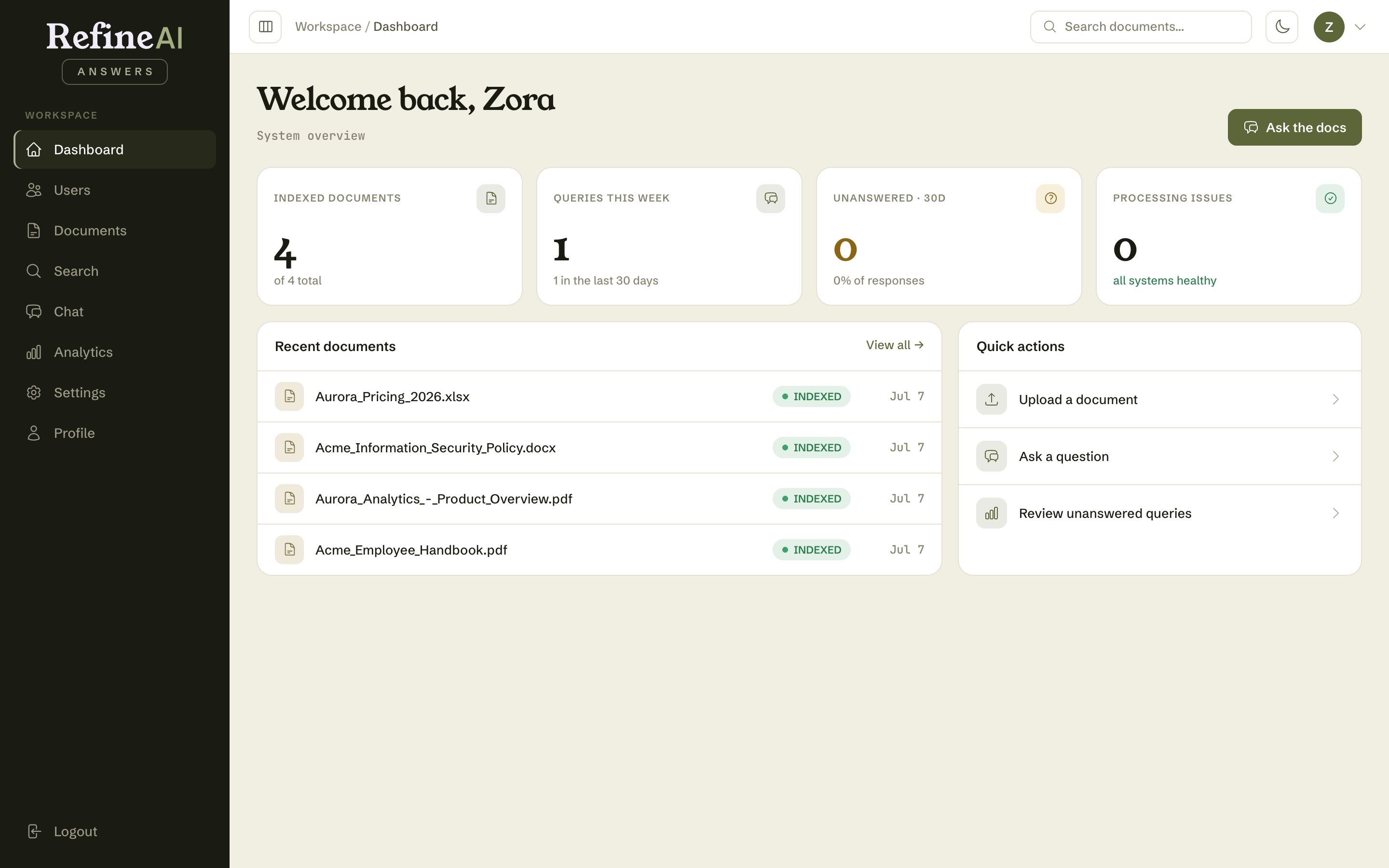
The stat cards
| Card | What it tells you |
|---|---|
| Indexed documents | How many documents are fully indexed and answerable, out of the total uploaded. |
| Queries this week | Questions asked this week, with the 30-day total underneath. |
| Unanswered · 30d | How many questions couldn't be answered from your documents in the last 30 days — your knowledge gaps. |
| Processing issues | Documents stuck or failed during processing. "All systems healthy" means zero. |
Recent documents
The most recently uploaded documents, each with a status pill (green INDEXED means ready to answer questions; see the status reference). Select a filename to open its details page, or View all for the full library.
Quick actions
- Upload a document → Uploading documents
- Ask a question → Document Chat
- Invite a user (Admins/Owners) → Adding users
- Review unanswered queries → Gap analysis
The Ask the docs button (top right) is always one click from a new conversation.
Finding your way around
The sidebar is the main navigation: Dashboard, Users (Admins/Owners only), Documents, Search, Chat, Analytics, Settings, Profile, and Logout at the bottom. Your current page is highlighted.
The header gives you:
- a breadcrumb showing where you are (e.g. Workspace / Documents),
- a search bar that jumps straight into document search,
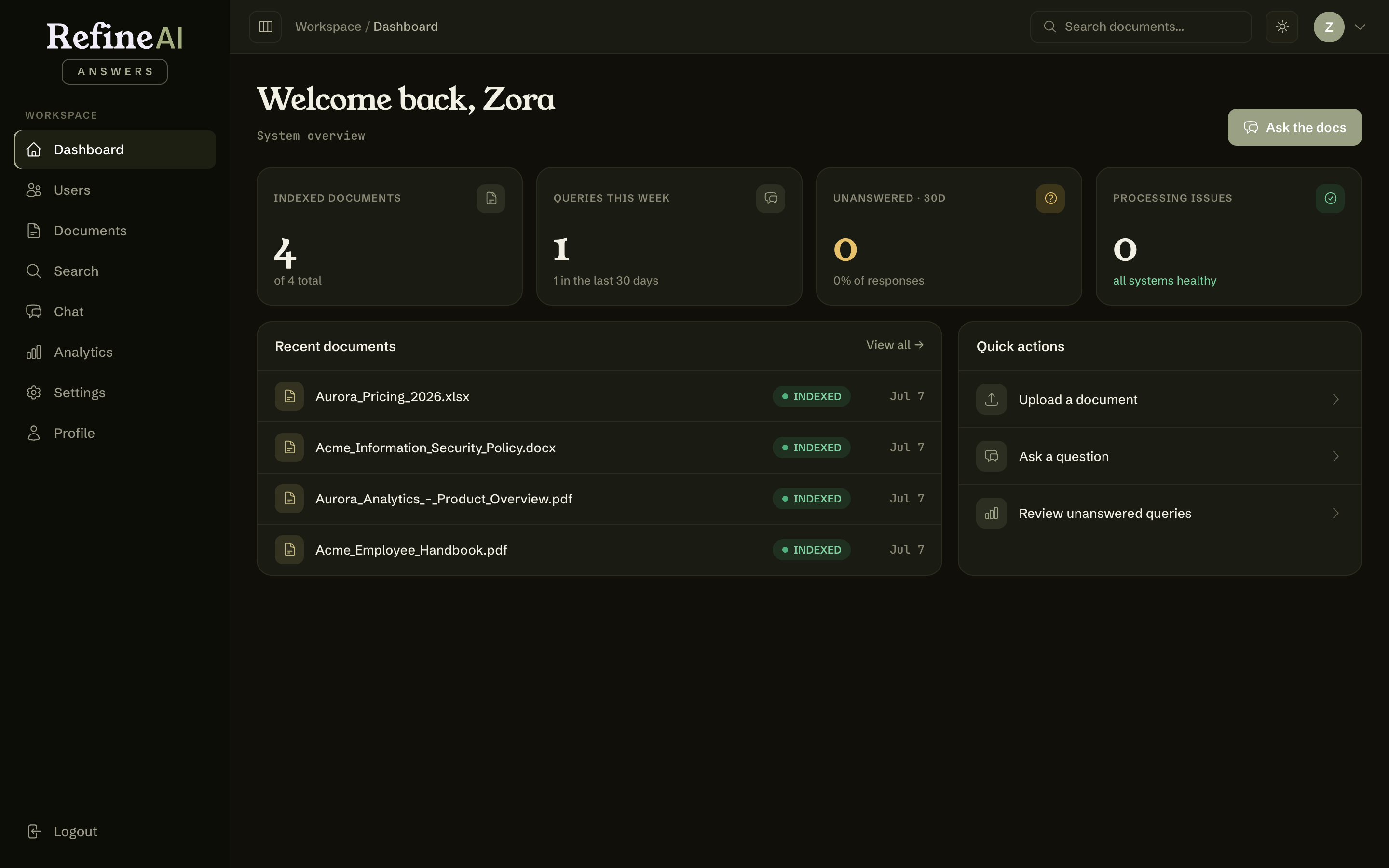
- a theme toggle (the sun/moon icon) to switch between light and dark mode,
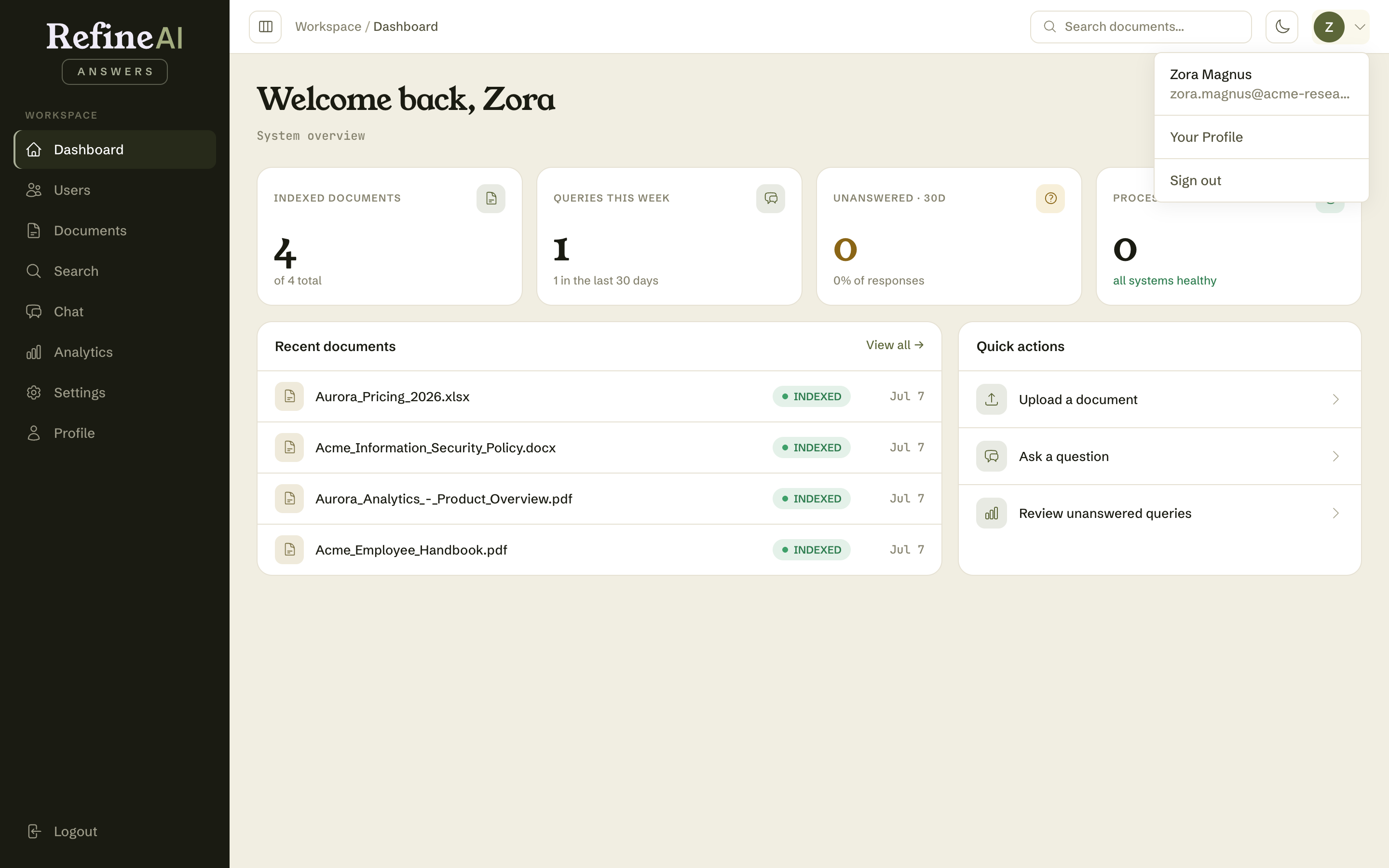
- your avatar menu with Your Profile and Sign out.
Dark mode
The theme toggle switches the whole interface. Your choice is remembered for next time.
Collapsing the sidebar
The panel icon next to the breadcrumb collapses the sidebar to icons only — handy on smaller screens. Hover a collapsed icon to see its label; the setting persists between visits.
Next: Uploading documents →