Adding users
Who can do this: Admins and Owners.
Creating a user
- Go to Users and select Create (or press Ctrl/Cmd + N).
- Fill in the form:
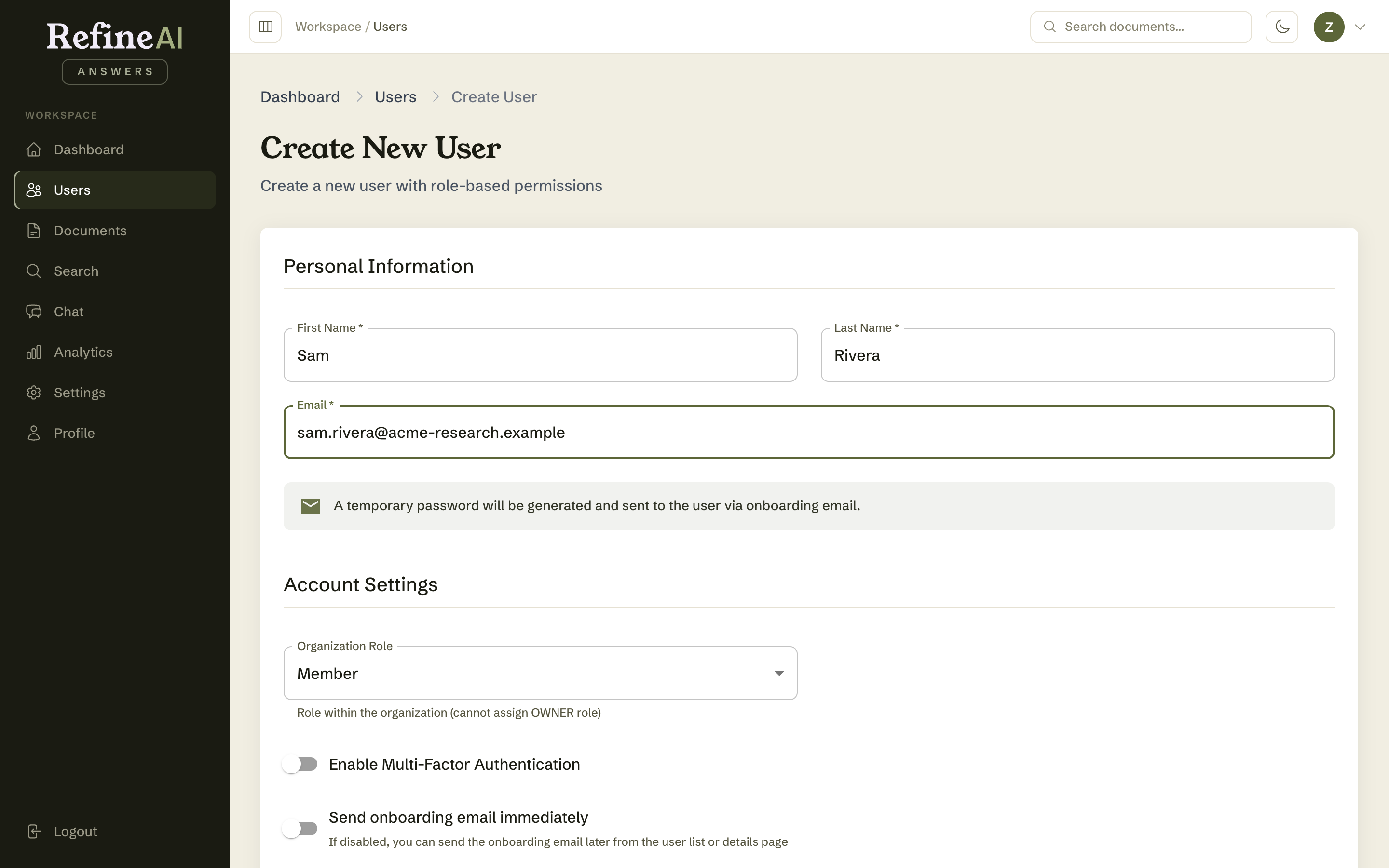
- First name / Last name / Email — required.
- Organisation role — Viewer, Member, Admin (see roles). Default is Member.
- MFA — require multi-factor authentication for this account.
- Send onboarding email — emails the new user a welcome with sign-in instructions.
You don't set a password: a temporary password is generated automatically and sent to the user by email. They sign in with it and choose their own.
- Select Create. The user appears in the list, and you're returned to it.
Practical flow: tick send onboarding email so the welcome and the temporary password reach the user together, and they can take it from there without you handling credentials at all.
Importing users in bulk
For teams, use Users → Import (Ctrl/Cmd + I):
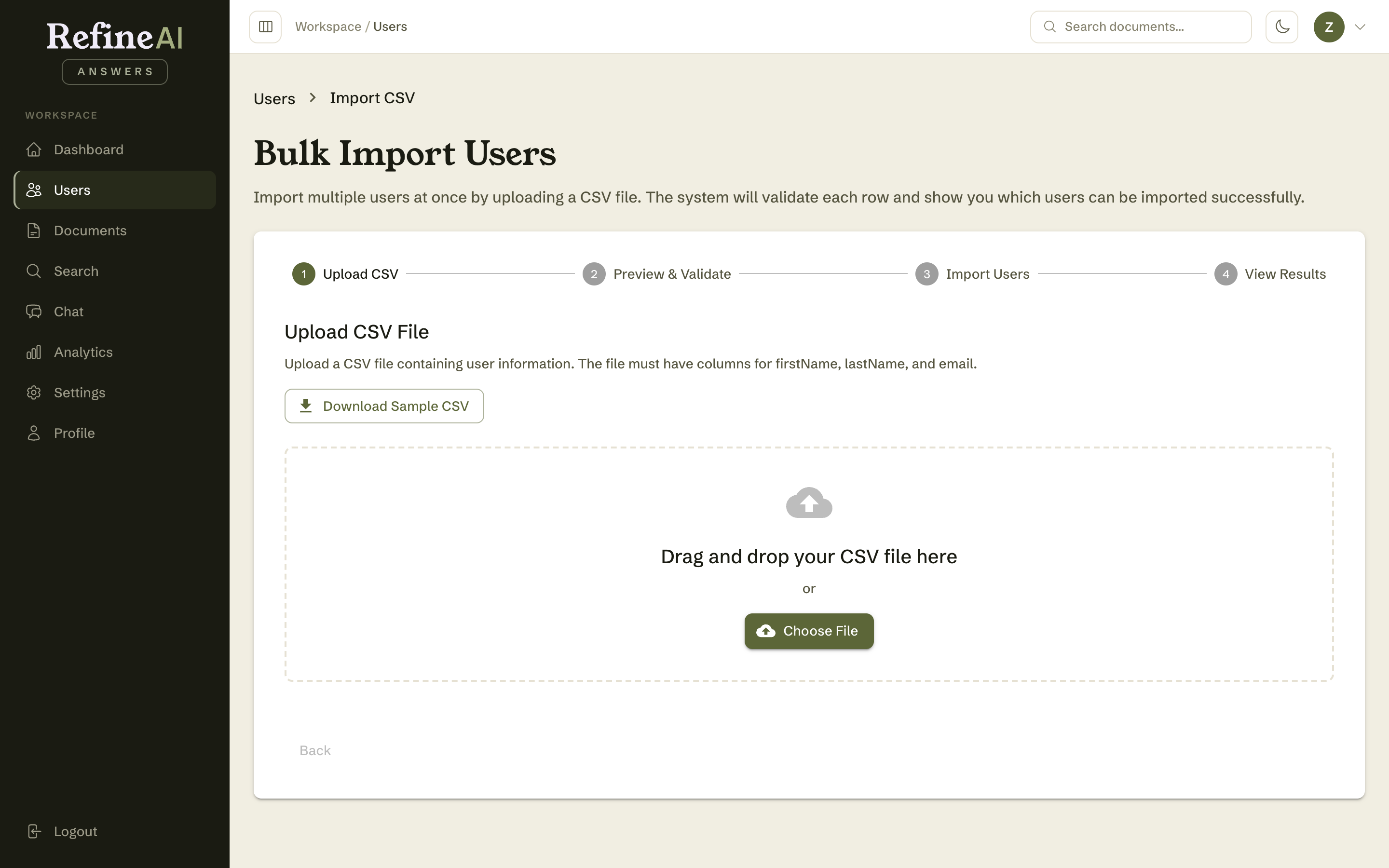
- Prepare a CSV with columns:
firstName,lastName,email,role,mfaEnabled. - Upload it and review the preview — problems are flagged per row before anything is created.
- Choose how credentials are handled (auto-generated passwords vs. invitation links).
- Run the import and review the summary of created/failed rows.