Editing and managing users
Who can do this: Admins and Owners.
Viewing a user
Select a user in the list to open their details — role, account status, MFA state, and sign-in history at a glance.
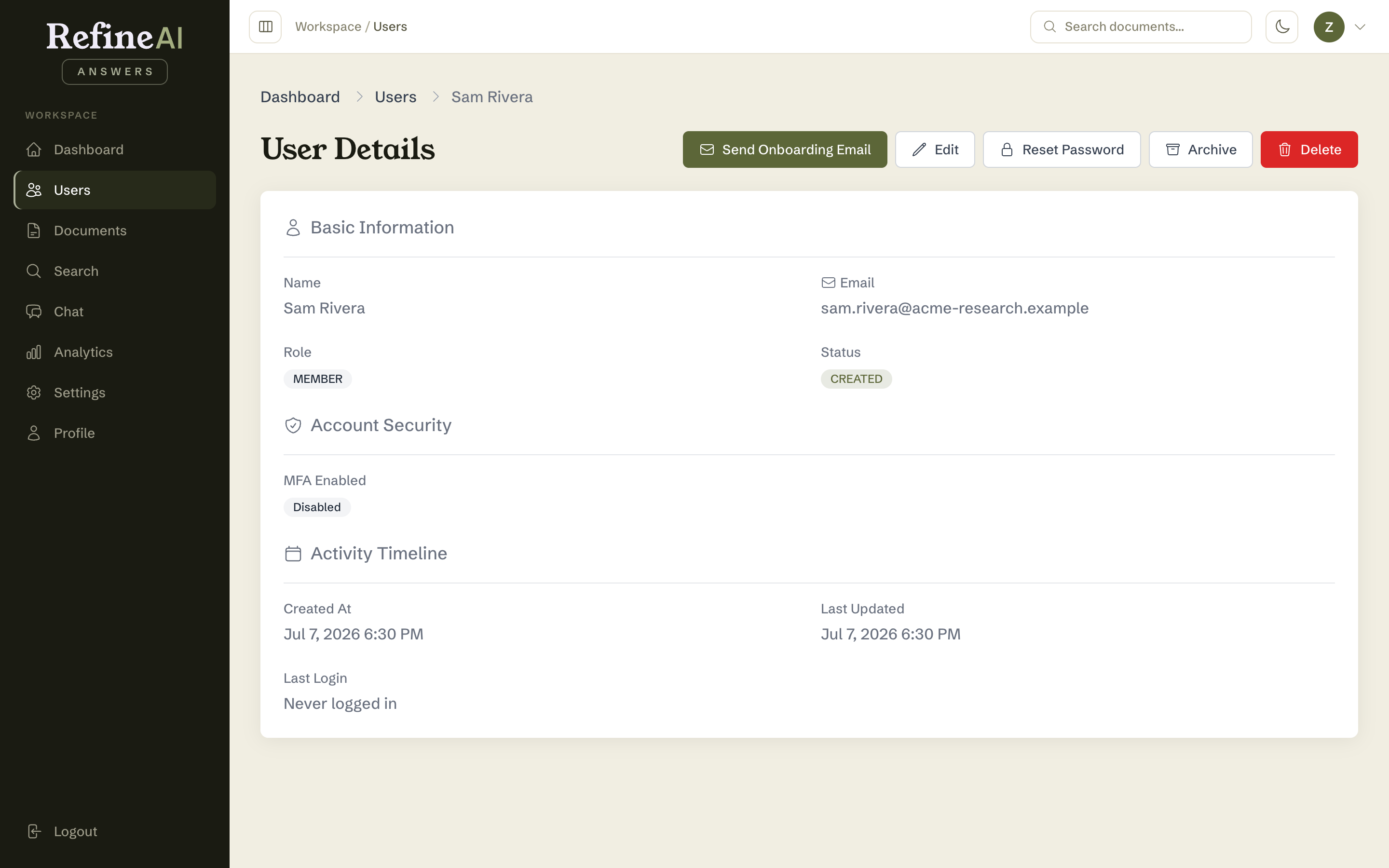
Editing
From the details page (or the row's ⋯ menu) choose Edit:
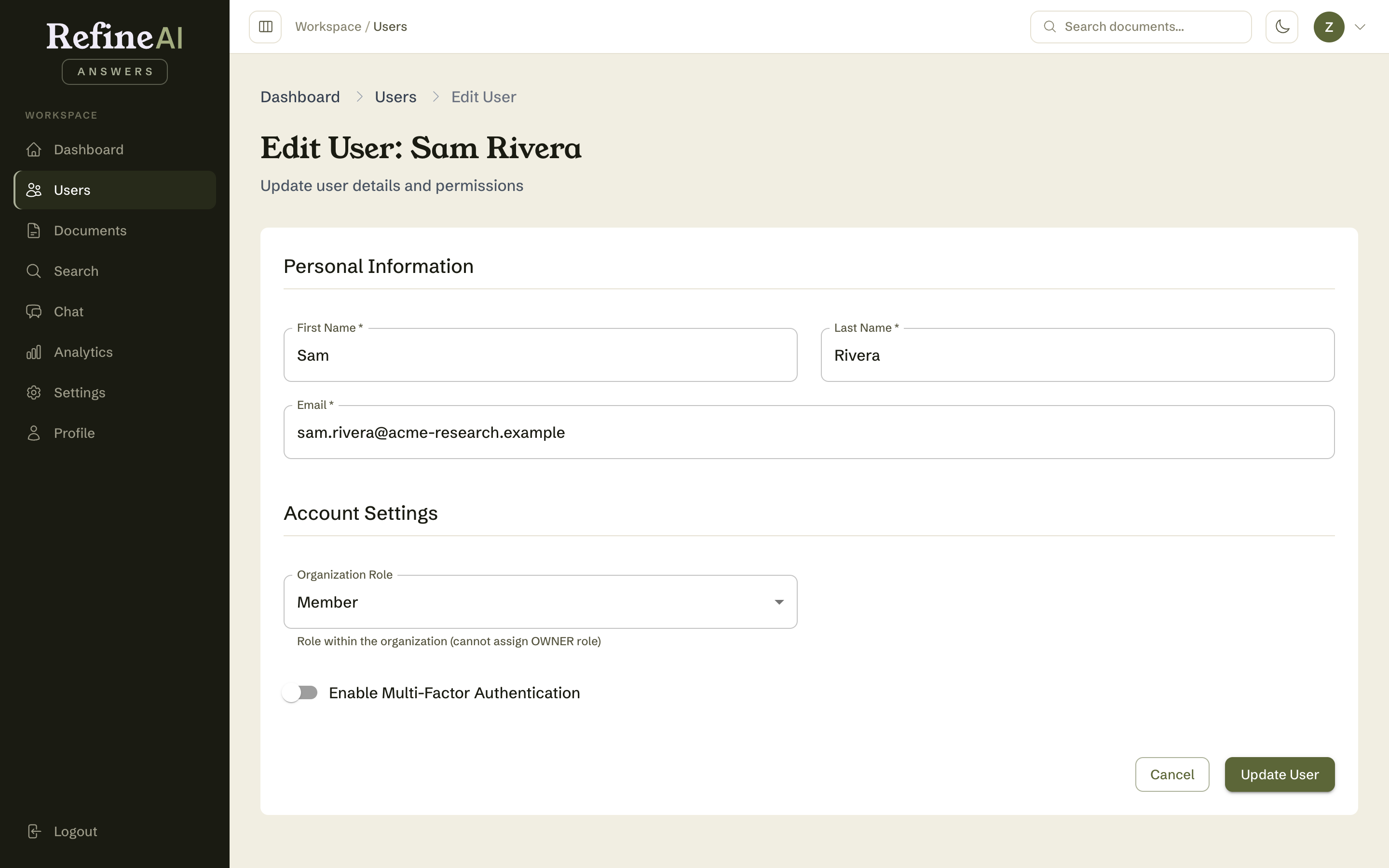
You can change:
- Name and email
- Organisation role — Viewer / Member / Admin. (Promoting to Owner is deliberately not available here.)
- Account status — e.g. set SUSPENDED to remove access without deleting anything, or ACTIVE to restore it. All statuses: Users, roles and permissions.
- MFA — require or clear multi-factor authentication.
- Force password reset — the user must set a new password at their next sign-in. Use after any credential concern.
Per-user actions
The ⋯ menu on each row also offers:
- Send onboarding email — re-send the welcome/invitation.
- Force password reset — as above, one click.
- Delete — permanently removes the user (with confirmation). Prefer SUSPENDED or ARCHIVED status when you may need the account trail later.
Bulk actions
Press Ctrl/Cmd + E on the user list to enter bulk-edit mode, select multiple users, and apply one action to all of them: delete, force password reset, send onboarding email, or change role. Administrative changes here are recorded in the audit log.
Next: Organisation and plan →