Microsoft Teams channels
Who can do this: Admins and Owners.
Settings → Teams maps Microsoft Teams channels (or whole teams) to collections. Questions asked in a mapped channel are answered from those collections by default — no one in the channel has to remember to scope anything, though anyone can still focus an individual thread differently.
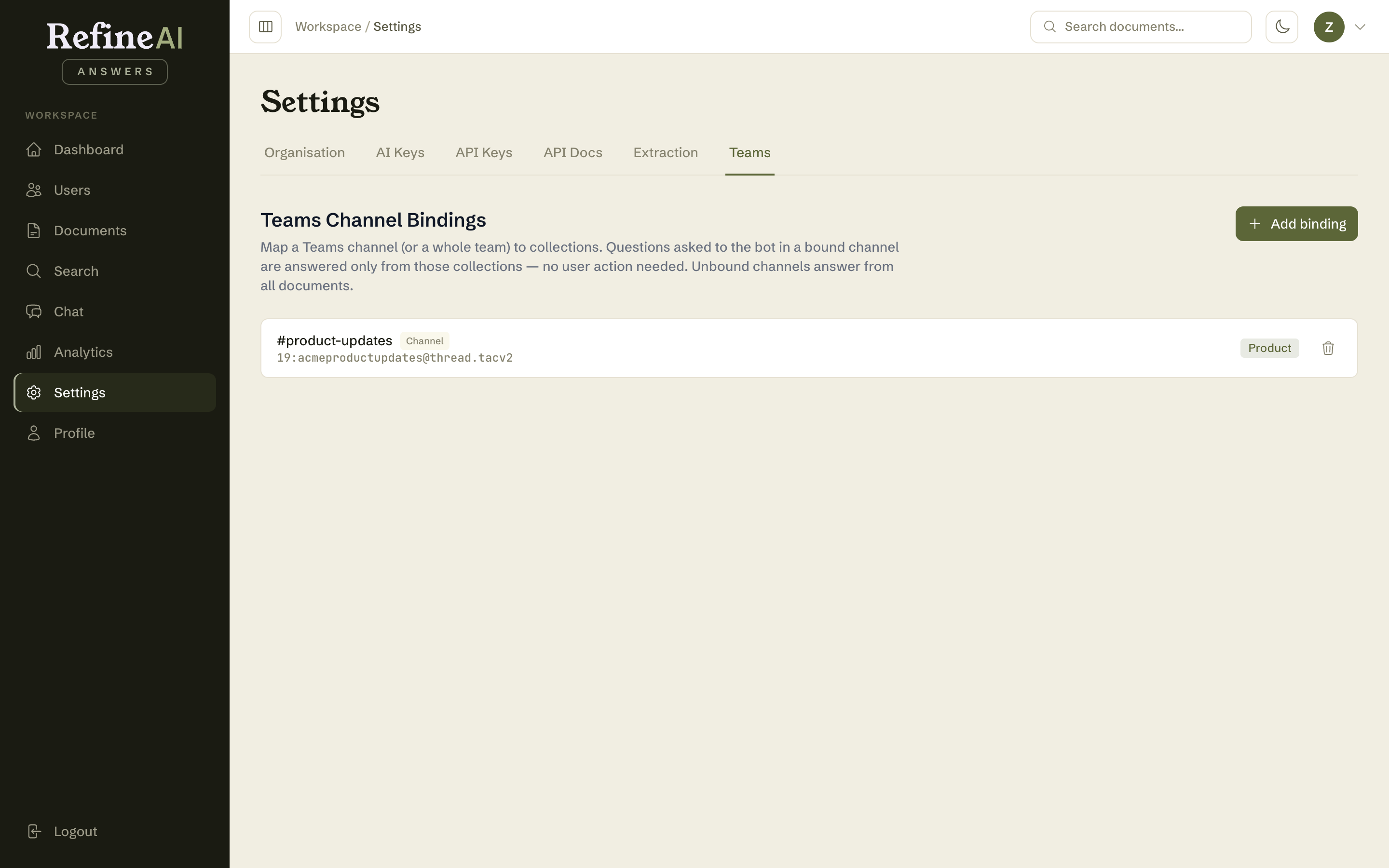
Each binding shows what it maps (channel or team), the name you gave it, and the collections it answers from. If a bound collection has since been deleted, its chip is flagged so you can fix the mapping — a stale binding blocks answers in that channel rather than quietly answering from the whole library.
Adding a binding
- Select Add binding.
- Choose Channel or Team — a team binding covers every channel in the team that doesn't have its own channel binding.
- Give it a display name people will recognise (e.g. #twist-support).
- Paste the Channel ID (or Team ID) from Teams — in Teams, open the channel's ⋯ menu → Get link to channel; the ID is the
19:…@thread.tacv2part of the link. - Tick the collections the channel should answer from, then save.
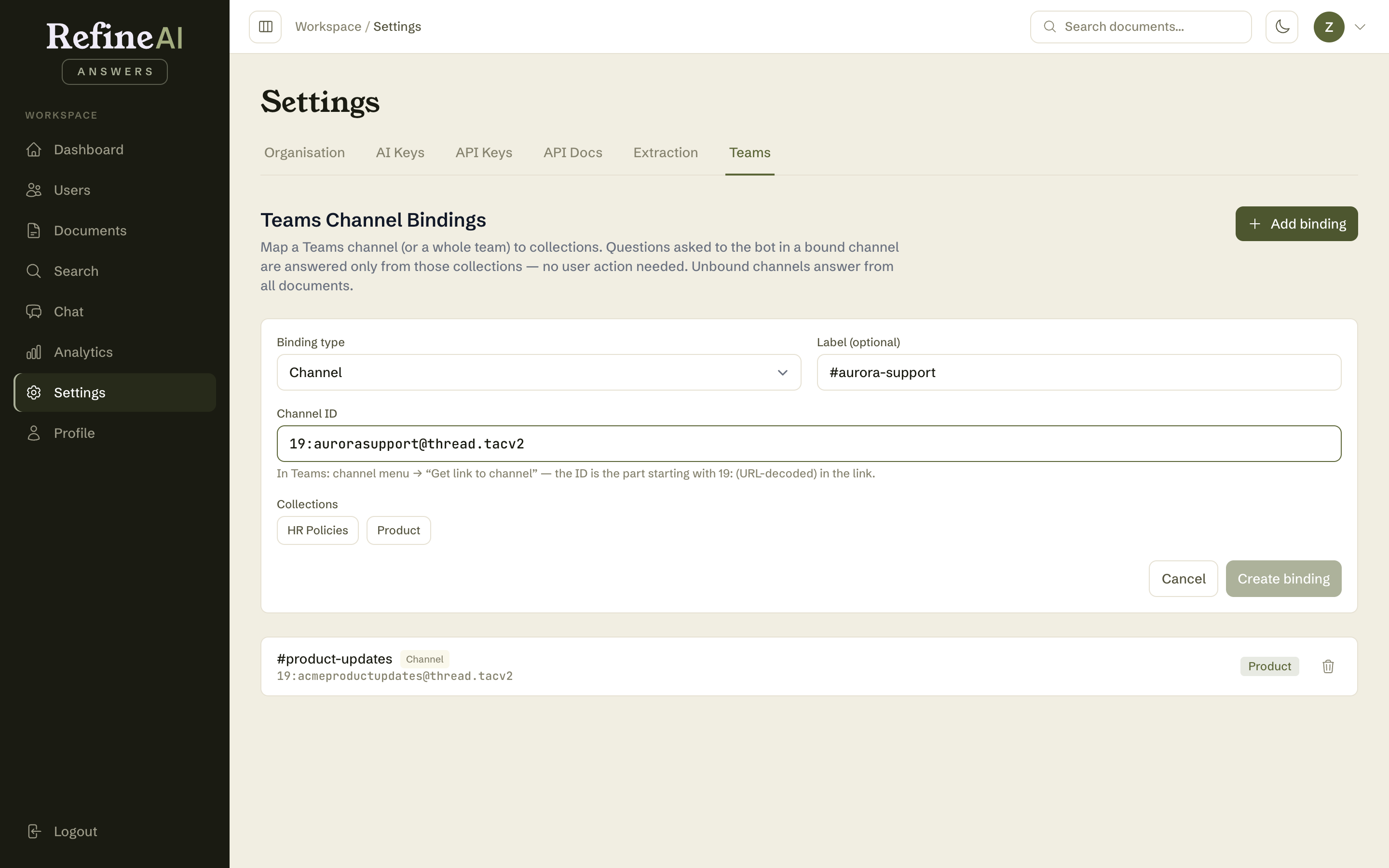
Changes take effect immediately, including for conversations already under way in the channel — except threads where someone has already chosen a scope explicitly, which keep their choice.
How it interacts with other scoping
A channel binding is the channel's default. Anyone in the channel can still focus a particular thread differently with in: syntax or the collection picker — an explicit choice always wins over the channel default. Every bot answer states which scope it used, so a scoped answer is never mistaken for an org-wide one.
Next: Profile and security →